


Selecting the Content type based on the current content
To close this screen and jump to the Settings screen, select the following link.
 Jump to the Settings screen
By selecting the Content type based on what you are watching, you can enjoy richer picture and sound quality.



(A) Movie
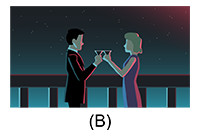
(B) Video/Images
(C) Game
(D) PC
- Press the
 (Quick Settings) button on the remote control, and then select the following in order.
[Settings] — [Display & Sound] — [Picture & Sound] — [Content type]
You can change the following settings.
Movie
Applies picture and sound quality suitable for watching movies and cinematic content.
Video/Images
Applies picture and sound quality suitable for watching video and still images.
Game
Applies picture and sound quality suitable for video games, PC games, and app game images.
PC
Applies picture and sound quality suitable for video input from a PC.
Note
- The available settings may vary depending on the input.