


USB Storage Device
You can view photos or play your music and videos from a connected USB flash drive or USB hard drive.
Insert a USB storage device in one of the USB connections on the TV while the TV is switched on.
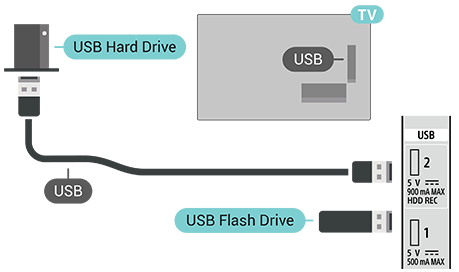
To view files from the USB storage device, you need to add the MMP (MultiMediaPlayer) app to the Home screen first. Press HOME on the remote control, select the Apps icon at the right end of the Apps row. You can also add the MMP app from the Apps page.
To stop watching the USB storage device content, press BACK on the remote control or select another activity. Exit the MMP app before you disconnect the device.
To remove the USB storage device safely
- Press Dashboard on the remote control.
- Scroll down to select your USB storage device and press OK on the remote control.
- Select Eject and press OK on the remote control.
- Wait until the eject procedure is finished and then pull out the flash drive.
Ultra HD on USB
You can view photos in Ultra HD resolution from a connected USB storage device. The TV will downscale the resolution to Ultra HD if the resolution of the photo is higher.