


Network and Internet
Home Network
To enjoy the full capabilities of your Google TV, your TV must be connected to the Internet.
Connect the TV to a home network with a high-speed Internet connection. You can connect your TV wirelessly or wired to your network router.
Connect to Network
Wireless Connection
What You Need
To connect the TV to the Internet wirelessly, you need a Wi-Fi router with a connection to the Internet.
Use a high-speed (broadband) connection to the Internet.
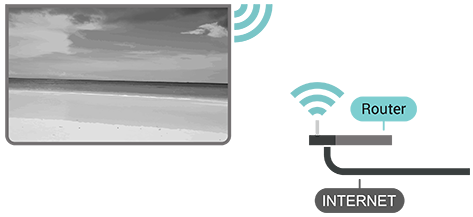
Turn Wi-Fi On or Off
Go to [Dashboard] — [All settings] — [Network and Internet] — [Wi-Fi] to turn on or off.
Make the Connection
Go to [Dashboard] — [All settings] — [Network and Internet] and press OK on the remote control.
- In the list of found networks, select your wireless network. If your network is not in the list because the network name is hidden (you switched off the SSID broadcast of the router), select [Add new network] to enter the network name yourself.
- Follow the on-screen instruction.
- A message will be shown when the connection is successful.
Quick connect to your Wi-Fi
Quick connect helps you to quickly connect to your Wi-Fi by scanning a QR code on your TV screen.
Join a Wi-Fi by scanning the QR code with a mobile device and follow the instructions. Your TV will join the Wi-Fi quickly by the assistance from your mobile device.
Problems
Wireless network not found or distorted
- Microwave ovens, DECT phones or other Wi-Fi 802.11b/g/n devices in your proximity might disturb the wireless network.
- Make sure that the firewalls in your network allow access to the TV’s wireless connection.
- If the wireless network does not work properly in your home, try the wired network installation.
Internet does not work
- If the connection to the router is OK, check the router connection to the Internet.
The PC and Internet connection are slow
- Look in your wireless router’s user manual for information on indoor range, transfer rate and other factors of signal quality.
- Use a high-speed (broadband) Internet connection for your router.
DHCP
- If the connection fails, you can check the DHCP (Dynamic Host Configuration Protocol) setting of the router. DHCP should be switched on.
Wired Connection
What You Need
To connect the TV to the Internet, you need a network router with a connection to the Internet. Use a high-speed (broadband) connection to the Internet.
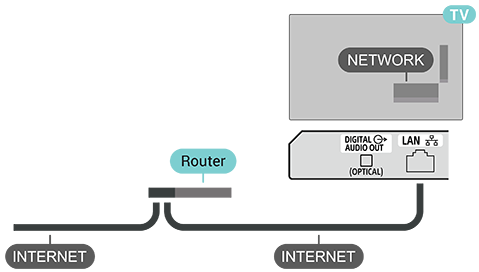
Make the Connection
- Connect the router to the TV with a network cable (Ethernet cable**).
- Make sure that the router is switched on.
- The TV constantly searches for the network connection.
- A message will be shown when the connection is successful.
If the connection fails, you can check the DHCP setting of the router. DHCP should be switched on.
** To fulfill EMC regulations, use a shielded FTP Cat. 5E Ethernet cable.
Other Network Settings
Hotspot & tethering
Go to [Dashboard] — [All settings] — [Network and Internet] — [Hotspot and tethering].
Adjust the Hotspot settings and set the Hotspot password.
Network Priority
Go to [Dashboard] — [All settings] — [Network and Internet] — [Network priority].
Select Ethernet or Wi-Fi for the priority of network connection.
Note
- It is strongly recommended for security purposes to connect your TV to the Internet via a router/modem that includes router functionality. Direct connection of your TV to the Internet may expose your TV to a security threat such as extraction or tampering of content or personal information.
Contact your service provider or network administrator to confirm your network includes router functionality.