
TelevisionBRAVIA 6

Key Overview

The supplied remote control, button layout, button names and available features vary depending on your region/country/TV model.

Top
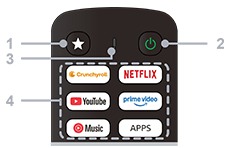
At the top of the remote control, there are two buttons. Starting from the left, these are Customisable and Power buttons. Between these 2 buttons there is a microphone built onto the remote control. Use the Customisable button to assign a shortcut to your most-used application. Power button turns the TV on and off. There are six large, horizontal rectangular buttons placed in three rows below these buttons. On top row, the two buttons from the left are Crunchyroll and NETFLIX buttons. In the middle row, the two buttons from the left are YouTube and prime video buttons. On the bottom row, the two buttons from the left are YouTube Music and APPS. APPS button provides one-touch access to popular streaming services. Below these buttons, there are three round buttons. Starting from the left, these are the Profile, Microphone/Google Assistant and Dashboard buttons. Use Profile button to display User profile. Use microphone/Google Assistant button for Google Assistant or voice search. When using voice command, speak into the microphone. Google Assistant is available only for limited region/country/model/language. Google Assistant or voice search requires an Internet connection. Use Dashboard button to display dashboard. Below these buttons, there are two interlocking rings of buttons. The inner ring has four tactile bumps, used for navigating up, down, left and right. At the center is the Enter button which is the raised bump. Below the ring, there are three round buttons. Starting from the left, these are Back, Home and EPG buttons. Back button returns you to the previous screen. Home button displays main menu of the TV. Use EPG button to display the Electronic Program Guide of TV. Below these buttons is a horizontal rectangular button, which is the Live TV/Free TV button. Use the Live TV/Free TV button to select from a wide range of Live TV/Free TV options, including local news, popular shows and movies. Below this button, there are two long buttons. Starting from the left, these are Volume and Channel buttons. Press the upper part of Volume button to increase the volume. Press the lower part of the same button to decrease the volume. Channel button with a tactile dot on the upper part. Press the upper part of Channel button to increase the channel number or press the lower part of the same button to decrease the channel number. Between these two buttons, there is Mute button. Use mute button to mute the sound. Press again to restore the sound. Below the volume, mute, and channel buttons, there is a section containing number buttons and a row of colour buttons. The number buttons from 1 to 9 are arranged in a three-by-three grid. Number 5 in the center of this grid features a tactile dot to help locate the numbers by touch. Use these number buttons to select a channel directly or enter numeric values. Below the three-by-three grid, there is another row with three buttons. In the middle is the zero button. To the left of the zero button is the Text button, and to its right is the Info or Display button. The Text button displays text information. Display button displays information about the channel or program you are viewing. The last row of buttons on the remote control contains four small, oval-shaped colour buttons. Starting from the left, these are Red, Green, Yellow, and Blue. These buttons are used to operate context-specific options or shortcuts within certain menus and applications.

1 - Customizable button

Launches a preferred app assigned by the user.


2 - Power (Standby / On)

Turns the TV on or switches it to standby mode.


3 - MIC

Used for voice search.


4 - Apps buttons

Accesses apps and online services.


Middle
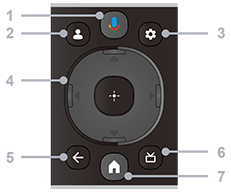
1 - Microphone/Google Assistant

Use Google Assistant *1 or voice search*1. For hints on how to control your TV, press the microphone button on the remote control and say “voice hints”.

*1 Google Assistant or voice search requires an Internet connection.


2 - Profile

Manages user profiles.


3 - Dashboard

Displays the Dashboard.


4 - Navigation (up/down/left/right) / OK (Enter)

Navigates and selects items on the on-screen menu.

In TV mode: Displays and selects programs on other channels while watching TV (Digital/Analog).


5 - BACK

Returns to the previous screen.


6 - EPG

Displays the digital program guide.


7 - HOME

Displays the TV Home screen.


Bottom
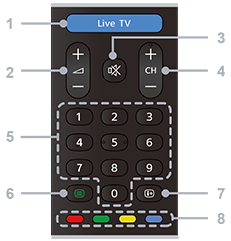
1 - Live TV / Free TV

Provides a wide range of Live TV options, including local news, popular shows, and movies.


2 - Volume + / −

Adjusts the volume.


3 - Mute

Mutes the sound. Press again to restore the sound.


4 - CH + / − (Channel)

In TV mode: Selects the next or previous channel.

In Text mode: Selects the + (Next) or − (Previous) page.


5 - Number buttons

Selects digital channels.


6 - Text

Displays text information and interactive services.


7 - Info

Displays information about the channel, program, or input source you are viewing.


8 - Color buttons

Executes the corresponding function on the screen.