Lens breathing compensation
Lens breathing is the phenomenon where the angle of view or focal length of a lens changes when the focus is adjusted.
By using the Adjust clip plugin of the Catalyst Prepare Plugin, you can correct the effects of lens breathing by leveraging the metadata within the clips.
The Adjust clip plugin cannot be used on clips located on FTP devices, volumes of XDCAM station via CIFS, XDCAM decks, XDCAM drive units, or Optical Disc Archive volumes.
Follow these steps to use the Adobe Premiere Catalyst Prepare Plugin v2.3 Lens breathing compensation.
-
Load into the project panel and drag the clip to the timeline panel.
For information on the camera settings required to enable corrections using metadata, visit https://www.sony.net/catalyst/help.
Note that if you change the camera settings or remove the lens while recording a clip, lens breathing compensation may not be supported.
-
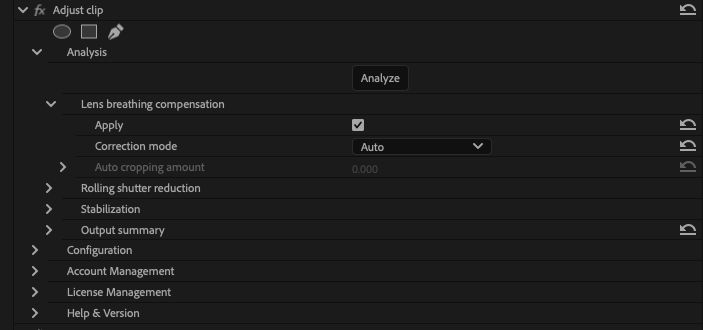
Dragging the Adjust clip from the Catalyst Prepare Plugin in the effects to the clip on the timeline will add the Adjust clip.
-
Tick Select the Apply check box to enable lens breathing compensation.
-
Click the Analyze button to analyze the selected clip. The results of the correction will be reflected in the preview display.
After analysis, the corrected resolution will be displayed in the Output summary section.
If a network connection to confirm the Catalyst Prepare Plugin license cannot be established, a watermark will appear on the correction output results.
-
Select Auto or Manual for the lens breathing compensation mode
-
When you select Auto. the cropping amount will be automatically adjusted.
-
Select Manual if you want to adjust compensation settings
| Item | Description |
| Auto cropping amount | After the clip is analyzed, this indicator represents the amount of cropping that will be used to stabilize the clip. |
| Source resolution | Displays the dimensions of the source media before cropping is applied. |
| Corrected crop resolution | Displays the dimensions of the frame after cropping is applied. |
If source clips captured with Active image stabilization mode exhibit blurring when using Auto mode, choose Manual mode and decrease the Cropping amount setting.
| Item | Description |
| Cropping amount |
Drag the slider to set the maximum amount of cropping that is applied to compensate for lens breathing. When correcting a clip using a Cropping amount setting larger than the default value, clips with significant lens breathing may exhibit a black border around the frame. We recommend using a Cropping amount setting that is close to the default value. You can double-click the slider handle to reset the setting to its default. |
| Source resolution | Displays the dimensions of the source media before cropping is applied. |
| Corrected crop resolution | Displays the dimensions of the frame after cropping is applied. |
When both lens breathing compensation and stabilization are enabled, the effects of the lens breathing compensation by the Catalyst Prepare Plugin may be weaker compared to the in-camera correction function. Check the corrected clip in the Preview pane, and if necessary, uncheck the Apply check box for either Stabilization or Lens breathing compensation before exporting the corrected result.
Follow these steps if your version of Catalyst Prepare Plugin is 1.2.1 or earlier.
-
Select the clip in the Source Monitor window.
-
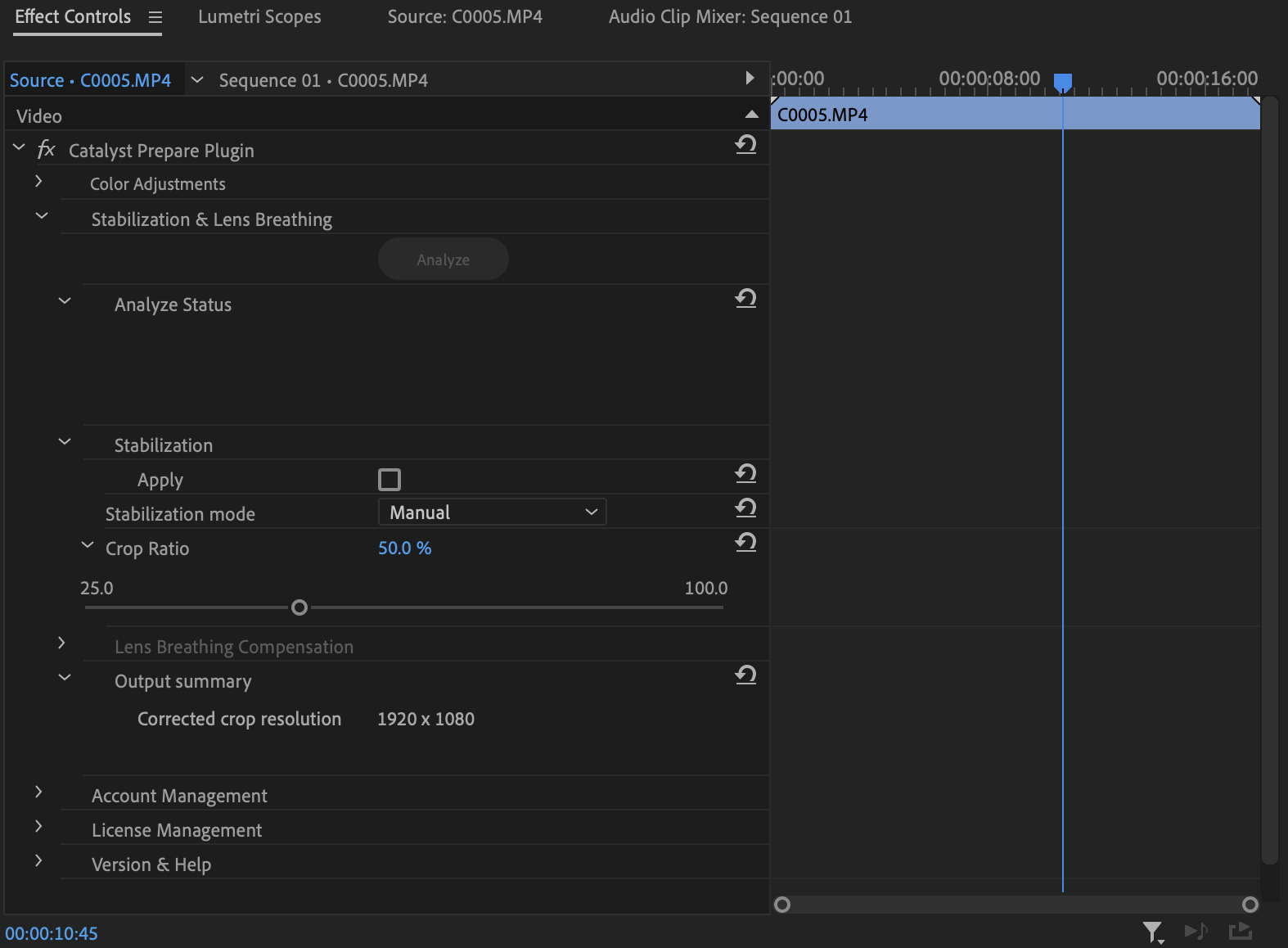
Select the Effect Controls window. The Catalyst Prepare Plugin controls are displayed.
-
Expand the Stabilization & Lens Breathing controls.
-
Click the Analyze button to analyze the selected clip. The results of the correction will be reflected in the preview display.
After analysis, the corrected resolution will be displayed in the Output summary section.