


- Top Page >
- Watching TV >
- Screen Format
Screen Format

Selects a screen format from a range of screen types according to your preferences.
This feature is for you to select a screen format to better fit content you are viewing. You can display 4:3 input signal by filling the entire screen, or display captions properly.
Press  repeatedly to select the desired option, then press
  .
.
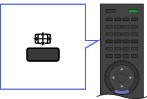

Changing the wide mode from 4:3 original source
- Wide Zoom
-
Enlarges the picture to fill a 16:9 screen, preserving the original picture as much as possible.
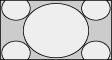
- Normal
-
Displays a 4:3 picture in its original size. Side bars are shown to fill the 16:9 screen.
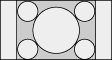
- Full
-
Stretches the 4:3 picture horizontally, to fill the 16:9 screen.

- Zoom
-
Displays the cinemascopic (letter box format) picture in the correct proportion.
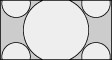
- 14:9
-
Displays a 14:9 picture in its original size. Side bars are shown to fill the 16:9 screen.

- Captions
-
Stretches the picture horizontally to fill a 16:9 screen, while fitting captions in the screen.
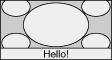
Changing the wide mode from 16:9 original source
- Wide Zoom
- Enlarges the picture to fill a 16:9 screen, preserving the original picture as much as possible.
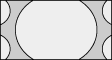
- Normal
- Displays a picture in its original size.
- Full
- Displays a 16:9 picture in its original size.
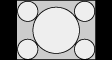
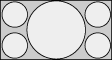
- Zoom
- Displays the cinemascopic (letter box format) picture in the correct proportion.
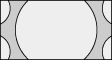
- Captions
- Stretches the picture horizontally to fill a 16:9 screen, while fitting captions in the screen.

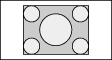
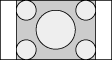
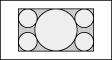
Changing the wide screen mode for PC Timing
| 800 x 600 | Normal | Full 1 | Full 2 | |
|---|---|---|---|---|
 |
|
 |
 |
|
| 1,280 x 768 | Normal | Full 1 | Full 2 | |
 |
|
 |
 |
|
