- Top Page
- >
- Keypad/Parts & Controls
- >
- Keys and Buttons
Keys and Buttons
Device control area
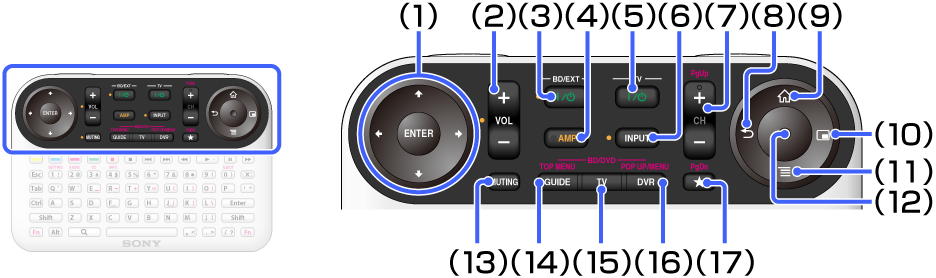
(1)
 /
/ /
/ /
/ (4-directions)/ENTER
 Press
/// to select an item. Then press ENTER to confirm the highlighted item.(2) VOL +/− (VOLUME)
Adjusts the volume.
(3)
 (ON/STANDBY) (BD/EXT)
Turns on the connected device or sets to standby mode.
(4) AMP
Allows you to control the connected AV Receiver.
Keys with orange dots are active when the AMP indicator is on.
See Preparing to Control an AV Receiver.(5)
(ON/STANDBY) (TV)Turns on the TV.
(6) INPUT
Switches inputs of connected devices.
(7) CH +/−
Selects the next (+) or previous (−) channel. See Watching Live TV.
When CH is pressed with Fn, the page moves up or down.(8)
 (BACK)
Returns to the previous display or shuts down the application or the task.
(BACK) functions regardless of displayed content.(9)
 (HOME)
Displays the Home menu.
The Home menu is a gateway to various content. See Using the Home menu.(10)
 (WINDOW)
Switches the window style.
When (WINDOW) is pressed, PIP (Picture-in-Picture) is activated. PIP (Picture-in-Picture) displays the TV screen in a sub window, and the Home menu or other applications in the full screen. See To Display Another Application While Watching TV.(11)
 (MENU)
Displays menu items according to applications.
Select the desired setting from the displayed menu items.
Some applications do not support (MENU).(12)Optical Finger Sensor (OFS)
Allows you to control the pointer only with your thumb.
To operate the pointer, slide your thumb on the OFS.
To click, press down the OFS.(13)MUTING
Silences the sound.
(14)GUIDE
Displays Rovi's On Screen Guide. See From TV program guide (GUIDE).
When GUIDE is pressed with Fn, the BD's or DVD's Top Menu is displayed.(15)TV
Displays live TV. See Watching Live TV.
(16)DVR
Displays the DVR (Digital Video Recorder) menu.
When DVR is pressed with Fn, the BD-ROM's Pop-up Menu is displayed.(17)
 (BOOKMARK)
Bookmarks your favorite content.
Video control area
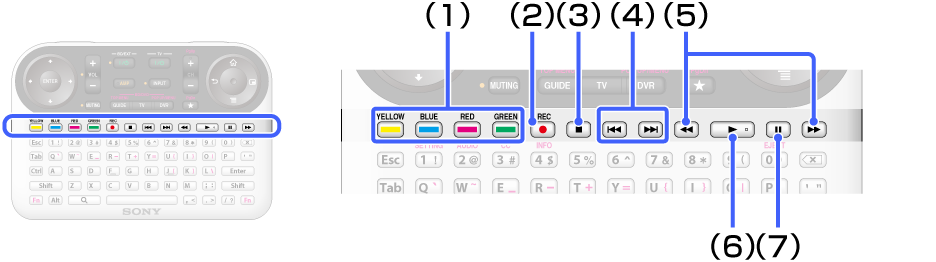
(1) Colored keys
Each key corresponds to the functions displayed on the screen.
(2)
 (REC)
(REC)Records programs into the Digital Video Recorder.
(3)
 (STOP)
Stops playback.
(4)
 /
/  (PREV/NEXT)
Skips to the previous/next chapter, track, or file.
(5)
 /
/  (FR/FF)
Fast rewinds/fast forwards video or music.
(6)
 (PLAY)
Starts or re-starts playback.
(7)
 (PAUSE)
Pauses or re-starts playback.
Keyboard area
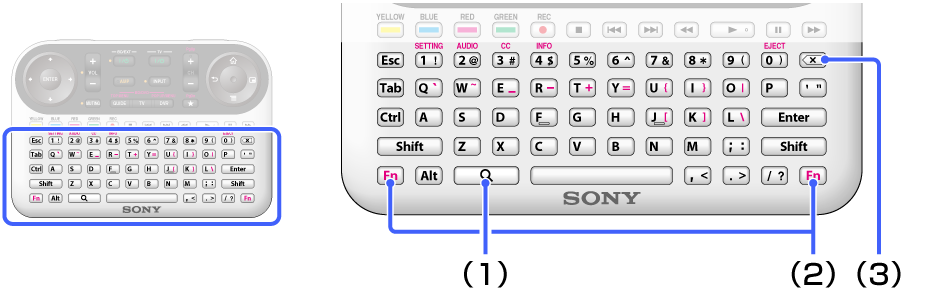
(1)
 (SEARCH)
Displays the Quick Search Box.
Type your query in the Quick Search Box, and the Internet TV will suggest content from various media providers.(2) Fn
Holding Fn down and pressing a key with purple characters is a shortcut to the labeled function.
-
- Fn + CH +/−:
- Moves page up or down.
-
- Fn + GUIDE:
- Displays the BD's or DVD's Top Menu.
-
- Fn + DVR:
- Displays the BD-ROM's Pop-up Menu.
-
- Fn + 1:
- Displays the Settings application.
-
- Fn + 2:
- Switches the language track.
-
- Fn + 3:
- Turns closed captions on or off.
-
- Fn + 4:
- Displays the disc info.
Note
- Shortcut keys are not available depending on the launching application.
-
(3)
 (DELETE)
Deletes input characters.
Side area
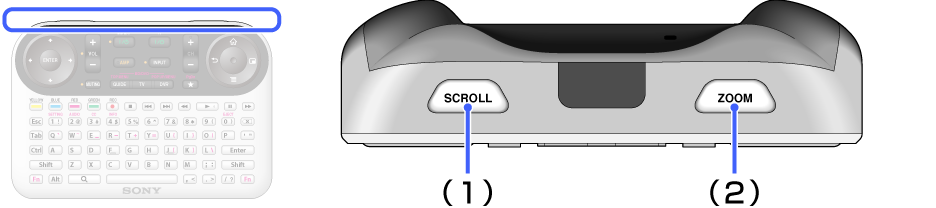
(1) SCROLL
Scrolls a page or list.
Hold down SCROLL and slide your thumb up and down on the OFS.(2) ZOOM
Zooms images.
Hold down ZOOM and slide your thumb up and down on the OFS.
To drag & drop
Hold down SCROLL and ZOOM buttons then use the Optical Finger Sensor (OFS) to highlight a selected area or move a certain object on screen. Let go of the SCROLL and ZOOM buttons once you are satisfied with your selection or destination.