


Front of remote control - Upper section
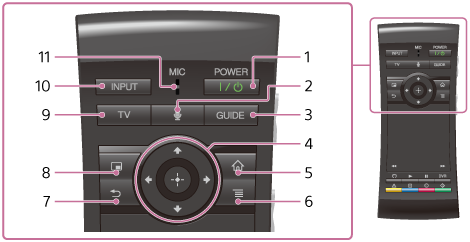
-
 (ON/STANDBY)
Turn the Smart Stick on and off. You may also need your TV's remote control to turn your TV on and off.
-
 (MIC)
(MIC)Launch the Voice Search function.
-
GUIDE
Display the TV Program Guide.
Note
- If the screen turns black when a Cable/Satellite Box is not connected to the Smart Stick, switch the input of your TV to “TV.”
-
 /
/  /
/  /
/  (4 directions)/
  (ENTER)
Press
/ / / to select an item, then press (ENTER) to confirm the highlighted item. -
 (HOME)
Open the Home menu and access each feature.
-
 (MENU) (OPTIONS)
Display special options associated with each feature.
-
 (BACK)
Return to the previous display, or exits the application.
-
 (Picture-in-Picture)
Display two pictures, such as a TV program and a website, on the screen, simultaneously.
Note
- After you update* the Smart Stick, PIP (Picture-in-Picture) will no longer be supported.
*Android version : 4.2.2 or later
You can check the Android version by pressing (HOME), then selecting [All Apps] - [Settings] - [About TV].
- After you update* the Smart Stick, PIP (Picture-in-Picture) will no longer be supported.
-
TV
Watch TV broadcasts.
Note
- If the screen turns black when a Cable/Satellite Box is not connected to the Smart Stick, switch the input of your TV to “TV.”
-
INPUT
Change the input. To use this function, make sure that the Smart Stick is on.
-
MIC
Speak near this microphone when using the Voice Search function.