
If your wireless LAN router is compatible with the WPS function, push the WPS buttons on both PCS and the wireless LAN router to establish a wireless LAN connection.
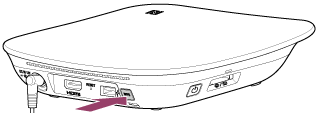
- Press and hold the WPS button on PCS for more than five seconds until the illumination LED blinks (light blue).
- Press the WPS button on your wireless LAN router within two minutes.
- After a wireless LAN connection has been established, the sides of the illumination LED of PCS stop blinking and stay lit (light blue).
For details on the location of the WPS button on your wireless LAN router, refer to the instruction manual of your wireless LAN router.
If the smartphone/tablet is already connected to the same wireless LAN router as PCS, connection between PCS and the smartphone/tablet via wireless LAN router will be established with only this operation.
If the smartphone/tablet is not connected to the wireless LAN router, connect it following the instructions in Establishing a wireless LAN connection between a smartphone/tablet and a wireless LAN router.
Hint
- When you cannot set up a wireless LAN connection using WPS, check the illumination LED indication to find the cause for the error. After checking the illumination LED, if you still cannot establish a connection, follow the instructions in Establishing a wireless LAN connection between PCS and a wireless LAN router using PCS Manager installed on a smartphone/tablet to connect your smartphone/tablet to PCS.
Note
- WPS cannot be used to set up a wireless LAN connection between PCS and a smartphone/tablet.