
This screen appears when starting PCS Manager and signing in to PCS.
If you tap a date, you can switch to the thumbnail list screen for that date.
To view a photo or video, tap a thumbnail on the thumbnail list screen.
To select a photo or video for various operations, tap and hold on the thumnail list screen to activate the selection mode.
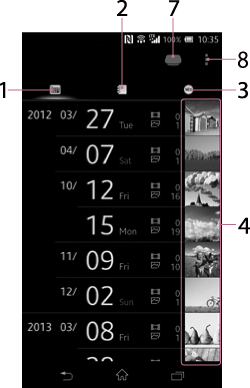
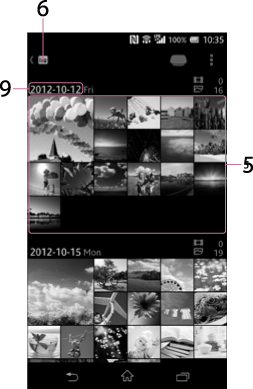
In the case of a tablet, the above two screens are placed side by side, on a single screen.
-
 (Date View) icon
Tap to switch to the Date View.
-
 (Album View) icon
Tap to switch to the Album View.
-
 (Latest added image) icon
Tap to switch to the Latest Added Image view.
-
Thumbnail
The thumbnail of the first image for each date is displayed. Tap a date to open the thumbnail list screen for that date.
-
Thumbnail list
A list of images appears. Tap a thumbnail to view the image in full-screen.
-
(Date View) icon
Tap to switch to the previous List screen.
This icon does not appear on tablets.
-
Storage icon
Tap to call up the Storage Selection menu.
For details, see Selecting a storage device.
-
 (*) (Menu) icon
Tap to bring up the menu to perform various operations.
* The [
]icon is not displayed on the screen of some Android devices. If the icon is not displayed on your screen, press the main menu button located outside of the screen. -
Date
The shooting date is displayed. You can change its display format by Setting the date and time display format.