
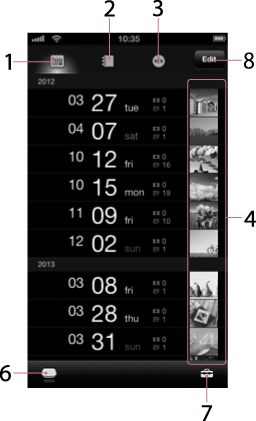
This screen appears when starting PCS Manager and signing in to PCS.
Tap a date to switch to the thumbnail list screen for that date.
You can delete images by date by tapping [Edit].
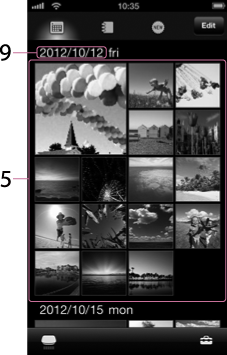
To view a photo or video, tap a thumbnail on the thumbnail list screen.
In the case of iPad, the above two screens are placed side by side, on a single screen.
-
 (Date View) icon
Tap to switch to the Date View.
-
 (Album View) icon
Tap to switch to the Album View.
-
 (Latest added image) icon
Tap to switch to the Latest Added Image view.
-
Thumbnail
The thumbnail of the first image for each date is displayed. Tap a date to open the thumbnail list screen for that date.
-
Thumbnail list
A list of images appears. Tap a thumbnail to view the image in full-screen.
-
Storage icon
The icon of the currently selected storage is displayed.
For details, see Selecting a storage device.
-
 (Menu)
Currently available functions are displayed.
-
Edit button
Tap to open the screen to delete images shot on specified day(s). Tap
 to select date(s), then tap [Complete] to delete.
For details, see Deleting images (iOS).
-
Date
The shooting date is displayed. You can change its display format by Setting the date and time display format.