

- Changes after software update, etc.
Changes after software update, etc.
The following items may differ from the factory defaults due to software updates.
- Addition of the Eco Dashboard
- Addition of the Game Menu
- Addition of the [Motion blur reduction] setting
- Dropped feature
This topic only describes the changes. Please also refer to the descriptions in the original topic.
For information on software updates, please refer to the “Software updates” page.
Addition of the Eco Dashboard
You can configure various settings to reduce power consumption, such as Power saving.
You can also check descriptions for features while setting them.
- Press the
 (Quick Settings) button on the remote control, and select [Eco Dashboard].
- In the displayed menu, move the focus left or right and select the desired setting.

Addition of the Game Menu
If you press the 123 (Control menu) button on the remote control after connecting a game console or computer, or after starting a game app, the game menu is displayed at the bottom of the screen.
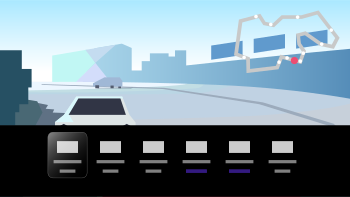
Hint
- Depending on the game console or computer you connect, or the game app you launch, the [Picture mode] may automatically change to [Game]. If [Game] is not automatically set, you can manually set it.
Note
- The available options may vary.
- Unsupported options are greyed out (not available).
Addition of the [Motion blur reduction] setting
[Motion blur reduction] is added under [Settings] — [Display & Sound] — [Picture] — [Motion].
Note
- When [Picture mode] is set to [Game], [Motion blur reduction] is enabled, and [Motionflow] and [Film mode] are disabled.
Dropped feature
- Wi-Fi Direct feature
- Media server/renderer feature
- Changes after software update, etc.