


Adjusting the sound quality
To close this screen and jump to the Settings screen, select the following link.
 Jump to the Settings screen
You can configure various settings related to the TV’s sound such as sound quality and sound mode.
Note
- The actual display may vary or some settings may not be available depending on your model/country/region, TV settings, and the connected device.

Press the
 (Quick Settings) button on the remote control, then select [Settings] — [Display & Sound] — [Picture & Sound] — the desired option.
You can change the following settings.
Sound (***)
Adjust audio from the TV speakers, audio output to an audio system connected via HDMI or optical audio output, or audio output to wired headphones or Bluetooth-connected devices.
Sound settings
You can change the following settings.
-
Surround
Virtually reproduce realistic surround sound.
-
Surround effect
Adjust the surround sound effect.
-
Voice Zoom
Emphasise voice.
Displayed when [Post-processing] is set to [Standard].
When [Voice Zoom] is enabled, if sound is changed to output from the TV speakers and Bluetooth headphones or speakers simultaneously, [Voice Zoom] will be disabled automatically. If the simultaneous sound output stops, the [Voice Zoom] will be enabled again. -
Dialogue enhancer
Enhance voices when [Post-processing] is set to [Dolby Audio processing].
-
Equaliser
Adjust sound based on different frequencies.
-
Reset
Return all sound settings to factory default.
-
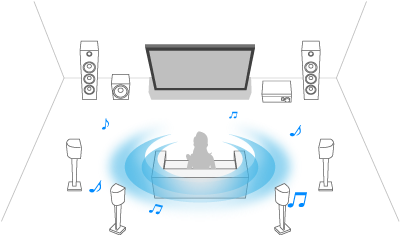
3D surround (***)
Enables or disables 3D surround (stereophonic sound).
Volume settings
You can change the following settings.
-
Balance
Adjust the speaker balance.
For details, refer to Balance . -
Beam tweeter level
Adjusts the volume of sound reflected from the ceiling.
-
Advanced auto volume
Keeps the volume level consistent for all programmes and inputs.
For details, refer to Advanced auto volume . -
Dolby AC-4 Dialogue level
Adjusts dynamic range of Dolby AC 4 signal.
Dynamic range settings
You can change the following settings.
-
Dynamic range
Compensates for audio level difference between input sources (for Dolby Digital audio and HE AAC audio).
Displayed only when [Inputs] is HDMI or during [Media Player] playback. -
DTS Dynamic range
Adjusts dynamic range of DTS signal.
General
You can change the following settings.
-
Post-processing
Select [Standard] (Sony), audio processed by Dolby technology or audio processed by DTS technology.
Adjust only for ***
When [On], the picture and sound quality is adjusted for the currently selected video input or app. When [Off], the picture and sound quality is adjusted for all inputs and apps.
Prioritise HDMI signal information
Automatically sets the content type based on the Content Type information in the HDMI signal. If it does not set automatically, set this to [Off].
Audio output
Configure to output sound from headphones or an audio system instead of the TV speakers.
Press the
(Quick Settings) button on the remote control, then select the following settings.
[Settings] — [Display & Sound] — [Audio output] — the desired setting.
You can configure settings such as those below.
-
Speakers
Select TV or external speakers.
-
Bluetooth device
Select Bluetooth device connected to the TV to output audio.
-
Audio system settings
Sets output to devices connected via HDMI.
-
Acoustic Center Sync
Use the TV speakers as the centre speaker of the home theatre system.
For details, refer to Using the TV as a centre speaker. -
Audio system prioritisation
When enabled, this automatically switches the audio output to a BRAVIA Sync-compatible audio system when the TV is turned on.
-
A/V sync
Adjusts output timing to reduce delay between video and audio when using certain audio systems connected via HDMI.
-
Digital audio output
Configure the output method when outputting digital audio. This setting is available only when [Speakers] is set to [Audio system].
Hint
- There is less deterioration and noise from signal transmission, and the sound quality is superior compared to analogue connections.
-
eARC setting
If [Auto] is selected, high quality audio is output when an eARC supported device is connected to an HDMI port labelled “eARC/ARC”.
eARC is an enhanced version of ARC and stands for Enhanced Audio Return Channel. By connecting an eARC supported device, you can enjoy uncompressed, high-quality audio formats and newer surround audio formats in addition to the audio formats supported by ARC. For supported audio formats, refer to Audio formats.
To connect the TV and an eARC supported device, use an eARC-supporting HDMI cable*. To connect an eARC supported device, refer to Connecting an audio system.
* An authorised Premium High Speed HDMI™ Cable(s) is recommended.
-
-
Bluetooth device settings
Settings for devices connected via Bluetooth.
-
A/V sync
When using a Bluetooth audio device (A2DP supported), the output timing is adjusted to minimise the delay between video and audio.
-
Bluetooth settings
Enables/disables Bluetooth.
For details, refer to Remotes and accessories . -
3D surround device settings
Virtually reproduce realistic surround sound.
For details, refer to Remotes and accessories .
-
-
Optical digital audio output settings
Enables optical digital audio output, and configures the output.
-
Optical digital audio output
Outputs the audio signal to the device connected to the optical digital audio output terminal.
-
Digital audio output
Configure the output method when outputting digital audio. This setting is available only when [Speakers] is set to [Audio system].
Hint
- There is less deterioration and noise from signal transmission, and the sound quality is superior compared to analogue connections.
-
Optical digital audio output volume
Adjusts the digital audio output level. Only valid for the PCM sound source. The volume levels between the PCM sound source and the compressed sound source will differ.
-