Connecting terminal
The types and shapes of connectors available vary depending on your TV.
For the location of the connectors, refer to the Setup Guide (printed manual).
| Terminal |
Description |
 |
- USB
- Connects to Digital still camera/Camcorder/USB storage media.
Note
- Connecting a large USB device may interfere with other devices connected next to it. In such a case, connect it to the other USB input.
|
 |
- USB HDD REC
- Connects to the USB HDD device or Digital still camera/Camcorder/USB storage media.
The USB HDD recording function is only available in limited regions/countries/TV models.
|
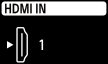 |
- HDMI IN
- Connects to the HDMI device. The HDMI interface can transfer the digital video and audio on a single cable. To enjoy high quality 4K contents, connect a Premium High Speed HDMI™ Cable(s) and follow the instructions displayed on the screen to set the [HDMI signal format] of the HDMI IN port.
|
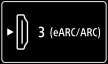 |
- HDMI IN (eARC/ARC)
- To connect an audio system that supports eARC (Enhanced Audio Return Channel) or ARC (Audio Return Channel), connect to the HDMI port labelled “eARC/ARC” on the TV. It is a feature that sends audio to an audio system that supports eARC/ARC through an HDMI cable. If the audio system does not support eARC/ARC, you need to connect with DIGITAL AUDIO OUT (OPTICAL).
Hint
There may be three tactile dots, next to the HDMI input terminal depending on your model. Use them as a guide during installation.
|
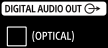 |
- DIGITAL AUDIO OUT (OPTICAL)
- Connects to an audio system with optical audio input.
When connecting an audio system not compatible with ARC using an HDMI cable, you need to connect an optical audio cable to the DIGITAL AUDIO OUT (OPTICAL) to output digital sound.
Hint
There may be two tactile dots, next to the DIGITAL AUDIO OUT (OPTICAL) terminal depending on your model. Use them as a guide during installation.
|
 |
 (RF input) (RF input)- Connects to Cable/Antenna/External Box.
Note
- When connecting the cable to the RF input, finger tighten only, over tightening the connection can damage the TV.
|
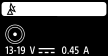 |
 (Satellite input) (Satellite input)- Connects to satellite input.
Note
- When connecting the cable to the Satellite input, finger tighten only, over tightening the connection can damage the TV.
|
 |
- LAN
- Connect to a Router.
Connect to the Internet using a LAN cable.
Note
- Depending on the operating environment of the network, connection speed may differ. The communication rate and quality are not guaranteed.
|
 |
- CAM (Conditional Access Module)
- Provides access to pay TV services. For details, refer to the instruction manual supplied with your CAM.
Note
- Do not insert the smart card directly into the TV CAM slot. It must be fitted into the Conditional Access Module provided by your authorised dealer.
- CAM is not supported in some countries/areas. Check with your authorised dealer.
- A CAM message may appear when you switch to a digital programme after using the Internet video.
- Do not remove the dummy card or cover (availability depends on TV model) from the TV CAM slot other than to insert a smart card fitted in CAM.
|

