

- Recording TV Programmes
- Recording to a USB HDD device
- Using a USB HDD device for recording
Using a USB HDD device for recording
Select within the text to jump to the related settings screen.
This function is available only in limited regions/countries/TV models.
USB HDD recording models have [Recording Settings] in [Settings] — [Channels & Inputs].
Connect a USB HDD device to your TV to record digital broadcasts.
Connect the USB HDD device to the TV’s USB port labelled “HDD REC” (if there is a blue USB port, that port supports HDD recording).
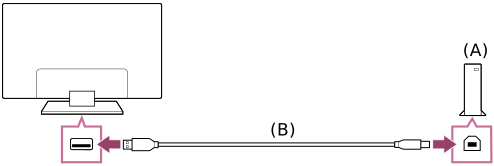
- USB HDD device
- USB cable (not supplied)
- Connect a USB HDD device to the USB port (blue) labelled “HDD REC” on your TV.
- Turn the USB HDD device on.
- Wait until the screen [USB drive connected] is displayed.
- Go to [Recording Settings] in [Settings] — [Channels & Inputs].
- Select Recording device and ensure PVR is enabled.
Note
- If the device is not detected in step 4, follow the instructions in the message and check that the USB HDD device for recording is connected to the Super Speed USB port (blue).
If the USB HDD device for recording is not recognised even after you have checked the connection, you need to check if the device is installed as “Removable storage” in [Settings] — [System] — [Storage] because it may have already been registered as a device for purposes other than recording. Refer to “Information about using a USB HDD device for recording” to use USB HDD device for recording.
- Recording TV Programmes
- Recording to a USB HDD device
- Using a USB HDD device for recording