


Voice Remote Control
The supplied Voice Remote Control, button layout, button names and available features vary depending on your model/country/region.
Upper buttons on the Voice Remote Control
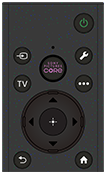
 (Power)
Turns on or switches to standby/networked standby mode.
 (MIC)
(MIC)
Speak into here to use the microphone in the Voice Remote Control. There is an LED at the microphone hole.
 (Input select)
Display and select the input source, etc. For details, refer to the Selecting inputs page.
SONY PICTURES CORE
Enjoy movies on SONY PICTURES CORE by the single press of a button.
 (Quick Settings)
Display Quick Settings. For details, refer to Using the Quick Settings page.
TV
Switch to a TV channel or input and display the TV menu.
 (More options)
Display additional features or settings based on current content or input.
 (Up) /
 (Down) /
 (Left) /
 (Right) /
 (Enter) (Navigation D-Pad)
On screen menu navigation and selection.
In TV mode: Display and select programmes on other channels while watching TV (Digital/Analogue).
 (BACK)
Return to the previous screen.
 (HOME)
Display the Home menu. For details, refer to the Home menu page.
Turns on if the TV is in standby mode.
Lower buttons on the Voice Remote Control
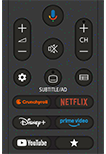
 +/- (Volume)
Adjust the volume.
 (Voice assistant/Microphone)
Ask Google for a little help on the big screen. Press the Voice assistant (or MIC) button on the remote to get started.
For details, refer to the Using the Voice Remote Control microphone page.
Voice assistant is not available in certain languages/countries/regions.
 (Mute)
Mute the sound. Press again to restore the sound.
Hint
- The accessibility shortcut service can be turned on or off by pressing and holding
(Mute) for 3 seconds.
CH +/- (Channel)
Select the channel.
 (Dashboard)
Display Dashboard.
 SUBTITLE/AD (Subtitle/Closed Caption/Audio Description)
Turn subtitles on or off (when the feature is available).
In Accessibility settings, the button function can be changed to switch audio.
 (Guide)
Display the digital programme guide of the TV or TV box (TV box control compatible models only). For details, refer to the Using the programme guide page.
App buttons (Online service)
Enjoy various streaming services by the single press of a button.
 (Customisable)
Launch preferred app assigned by user.
Hint
- You can use the convenient [Find remote] feature to find the Voice Remote Control by pressing the Power button on the TV. For details, refer to Finding the Voice Remote Control (only models supplied with a buzzer built-in Voice Remote Control) .
To close this screen and jump to the Settings screen, select the following link.
 Jump to the Settings screen
How to mute the Voice Remote Control operation sound
-
Press the
(Quick Settings) button on the Voice Remote Control, and select the following in order to disable them.[Settings] — [System] — [System sounds]
How to charge the Voice Remote Control (rechargeable Voice Remote Control)
The included Voice Remote Control is equipped with a rechargeable battery. Follow the steps below to charge the battery when necessary.
-
Connect the included USB cable to the Voice Remote Control.
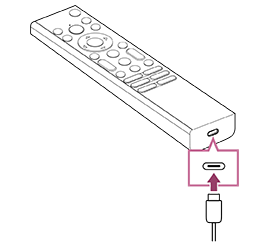
-
Connect the USB cable to your USB mains adaptor.
The LED above the microphone lights up red when charging starts.
Note
- In a high or low temperature, the charging speed may become slow or charging may stop, which will make charging inefficient. We recommend that you charge the battery in an environment where the ambient temperature is between 15°C ~ 35°C.
It takes approximately two hours to fully charge the battery from the empty state. The time it takes to fully charge may change depending on usage conditions. - If the Voice Remote Control is not used for a long period of time, it may not be able to be charged due to over-discharge. Charge the battery at least once every six months.
- Do not get the USB terminal wet. Do not use or charge the battery in wet conditions. In addition, avoid fog, sand, dust, and static electricity while using it.
- When charging, use the following equipment that can supply an output current of 0.5 A (500 mA) or more.
- Commercially available USB mains adaptor
- A computer equipped with a USB terminal as standard (We do not guarantee the charging operation of the Voice Remote Control on all computers.)
- When charging, only use the included USB cable, and be sure to connect the Voice Remote Control directly to your computer or charger. If you connect it via a USB hub, etc., a charging failure may occur.
Hint
-
If the battery power drops to a low level, it will be indicated by a lamp or buzzer as follows.
30% or less: When you press the Power button, the lamp on the Voice Remote Control flashes red.
10% or less: When you press the Power button, the lamp on the Voice Remote Control flashes red and the buzzer sounds.
You can turn the buzzer off/on by holding down the
(BACK) button while pressing the
(Volume) - button. -
You can check the remaining battery power level with the following settings.
[Settings] — [Remotes and accessories] — [Accessories]
The remaining charge which is displayed may differ from the actual remaining charge in some cases. Use it as a rough estimate.
-
If you charge the Voice Remote Control after not using it for a long period of time, the lamp on the Voice Remote Control may not light up right away.
Check if the TV is working properly
- Press the Power button on the TV to determine if the problem is with the remote control or not. For the location of the Power button, refer to the Reference Guide/Setup Guide supplied with the TV.
- If the TV is not working, try resetting it.
Reset (restart) your TV
Check if the remote control is working properly
- Point the remote control at the remote control sensor located at the front of the TV.
- Keep the remote control sensor area clear from obstacles.
- Fluorescent light can interfere with remote control operation; try turning off any fluorescent light.
- Open the Voice Remote Control cover as shown below.
- Remove the Voice Remote Control cover and replace the batteries with new ones.
- Check that the orientation of each battery matches the positive (+) and negative (-) symbols in the battery compartment.
-
Sliding type

-
Sliding type
Note
- Remote controls with a Voice assistant/MIC button are connected to the TV using Bluetooth. Radio interference may occur in the following situations and cause issues such as poor operation of microphone or remote control because Bluetooth radio waves use the same frequency as radio waves emitted from microwaves and wireless LANs (IEEE 802.11a/b/g/n/ac/ax).
- There are people or obstacles (such as metal objects or walls) between the TV and remote control.
- A microwave is being used nearby
- There is a wireless LAN access point nearby
- The TV and remote control are unpaired
- Use the remote control closer to the TV
- Remove obstacles between the TV and remote control
- Use the remote control when a microwave is not in use
- Turn off other Bluetooth devices
-
Check the TV’s Bluetooth setting and turn it on and off
Press the
(Quick Settings) button on the remote control and select the following in order.
If [Settings] — [Remotes and accessories] — [Bluetooth] is disabled, enable it. If it is enabled, disable and then enable it again. - Set wireless LAN access points and microwaves at least 10 m away from the TV
- If the 5 GHz band (IEEE802.11a) is available in the wireless LAN, connect to the 5 GHz band
- Pair the remote control again
Press the
(Quick Settings) button on the remote control, and select the following in order.
[Settings] — [Remotes and accessories] — [Remote control] — [Connect via Bluetooth] — [Connect a new remote] — follow the on-screen instructions to reconnect the remote control.
If you cannot operate the TV with the supplied remote control, select the above in order until [Connect a new remote] using another Sony TV's remote control, and then try connecting again with the supplied remote control.
- Depending on your model, a Bluetooth remote control is supplied and already paired with the TV. At the time of shipment, the supplied paired remote control cannot be used to operate other TVs. When checking remote control operation, use with the TV with which the remote control was supplied.
Reset the remote control
If the remote control does not operate correctly due to poor battery contact or static electricity, the problem may be resolved by resetting the remote control.
- Remove the batteries from the remote control.
- Press the Power button on the remote control for three seconds.
- Install new batteries into the remote control.
If the problem persists, refer to Reset (restart) your TV and Frequently Asked Questions for Troubleshooting pages.
Note
- When you unplug the TV and plug it in again, the TV may not be able to turn on for a while, even if you press the Power button on the remote control or the TV. This is because it takes time to initialise the system. Wait for about 10 to 20 seconds, then try again.