


Connecting to a network with your smartphone (USB tethering)
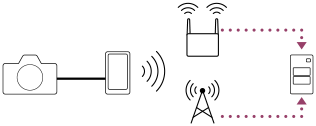
Connect the camera and a smartphone with a USB cable, and connect the camera to a network using the Wi-Fi function of the smartphone or a mobile line.
Preparation
-
MENU →
 (Network) → [USB LAN/Tethering] → [USB LAN/Teth Cnct] → Set the USB terminal to use.
- Only the USB Type-C terminal of USB PORT 1 supports SuperSpeed USB 10 Gbps (USB 3.2). It is recommended to use USB PORT 1 when connecting the camera.
- You can also connect the camera using USB PORT 2, but USB communication will be Hi-Speed USB (USB 2.0) communication.
-
MENU → (Network) → [USB LAN/Tethering] → [Tethering Connection].
- The message “Connection preparation complete. Connect a USB tethering device.” will appear on the monitor of the camera.
- Connect the USB Type-C terminal on the camera to the smartphone with a USB cable.
- If a message confirming permission to connect is displayed on the smartphone, allow the connection with the camera.
To connect to a network
When using the Wi-Fi function of a smartphone (Android only)
Enable the Wi-Fi function on your smartphone, and then connect to the network. Wi-Fi setup on the camera is not required.
When using a mobile line
iPhone: Enable the internet sharing function under Settings.
Android: Enable USB tethering in the Network/Internet menu under Settings.
Hint
- We recommend using a smartphone and USB cable that support USB-PD (USB Power Delivery). However, Sony does not guarantee the operation of all products.
Note
- Only use trusted smartphones for tethering. We do not recommend connecting to devices of unknown origin that are not secure.
- Depending on the details of your contract with your communications carrier, tethering via a mobile line may not be possible, or you may unintentionally incur communication costs.
- For information on how to set up the smartphone, refer to the smartphone instruction manual.
TP1002152446