


安装Sound Organizer 2(仅限Windows)
在电脑上安装Sound Organizer 2。
注意
- 请务必在已安装Sound Organizer 1.6的电脑上安装Sound Organizer 2。
-
安装Sound Organizer 2时,需要登录到具有管理员权限的帐户。
此外,如果使用Windows 7/Windows 8.1且出现[用户帐户控制]窗口,则应确认窗口的内容,然后单击[是](在Windows Vista中单击[继续])。
- 安装Sound Organizer 2时将添加Windows Media Format Runtime模块。如果卸载Sound Organizer 2,所添加的Windows Media Format Runtime模块仍将保留。不过,如果已预先安装了Windows Media Format Runtime,则可能不会安装此模块。
- 卸载Sound Organizer 2不会删除内容存储文件夹中的数据。
- 如果您的电脑上安装有多个Windows操作系统,请勿在每个操作系统上都安装Sound Organizer 2,以免出现数据不一致。
- 将IC录音机连接到电脑上。
- 进至[开始]菜单,单击[计算机],然后双击[IC RECORDER] - [FOR WINDOWS]。
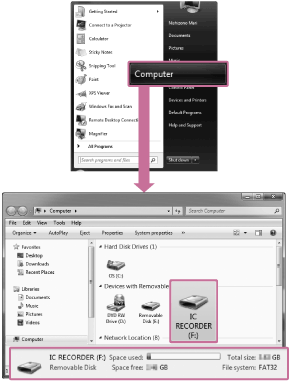
电脑画面上所显示的窗口因操作系统的版本而异。Windows 7被用作本帮助指南中的示例。
- 双击[SoundOrganizer_V2001](或[SoundOrganizer_V2001.exe])。
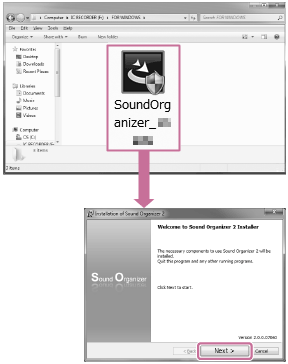
取决于操作系统的版本,安装准备过程(文件提取)可能会在无任何提示的情况下自动开始。
在这种情况下,请遵照画面上的指示进行操作。
- 确认接受许可协议的条款,选择[I accept the terms in the license agreement],然后单击[Next]。
- 出现[Setup Type]窗口时,选择[Standard]或 [Custom],然后单击[Next]。如果已选择[Custom],请遵照画面上的指示进行操作。
- 出现[Ready to Install the Program]画面时,单击[Install]。安装开始。
- 出现[Sound Organizer 2 has been installed successfully.]窗口时,复选[Launch Sound Organizer 2 Now],然后单击[Finish]。
注意
- 安装了Sound Organizer 2之后,您可能需要重新启动电脑。
