
You can select the playback mode, such as shuffle play or repeat play, in the menu.
- In the stop mode, select MENU - the
 tab - “Play Mode,” and then press
  .
.
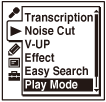
The category selection window appears on the display.
- Press
 or
or  to select the category you want to play (“Recording files,” “Music,” or “Podcast”), and then .
 - Press or to select the playback mode you want, and then press .
- Press
 STOP to exit the menu mode.
Descriptions of menu items
You can select one of the menu items available.
1:
A file is played back.
 :
:
Files in one folder are played back continuously.
ALL:
All the files are played back continuously.
 1:
1:
One file is played back repeatedly.
:
Files in one folder are played back repeatedly.
ALL:
All the files are played back repeatedly.
 :
:
All files in the currently selected Music folder are played back in random order.
ALL:
All files in the all Music folders (on the  tab) are played back in random order.
Note
- The and ALL can be set only when you select the “Music” category in step 2.
-
The playback mode can be set to various categories (“Recording files,” “Music,” or “Podcast”).
Even when you have set the playback mode to one category, you need to set it again when you select a different category.
Hint
- If you select “Play Mode” in the menu while playing a file, the category selection window (in step 2) will not appear and you can select the desired playback mode directory.
- If you press the button for one second or more while the IC recorder is playing a file, the file will be played back repeatedly. (In this case, you do not have to set the repeat play function from the menu.)