


Reset (restart) your LCD Monitor/LCD Display
In most cases when you are using the LCD Monitor/LCD Display and an issue occurs such as the picture not displaying on the screen or the remote control not working, resetting the LCD Monitor/LCD Display may resolve the issue. Reset the LCD Monitor/LCD Display with the following procedure.
Power Reset
-
Restart the LCD Monitor/LCD Display with the remote control.
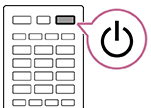
Press and continue holding the Power button on the remote control for about 5 seconds until the LCD Monitor/LCD Display restarts (a shutting down message will appear).
-
Unplug the AC power cord (mains lead).
If the problem persists after step 1, unplug the LCD Monitor/LCD Display power cord (mains lead) from the electrical outlet. Then press the Power button on the LCD Monitor/LCD Display once, and release it. Wait for 2 minutes, and plug the power cord (mains lead) back into the electrical outlet. Depending on the model, you can press and hold the Power button on the LCD Monitor/LCD Display (40 seconds or longer) until it turns off and restarts.
Hint
- LCD Monitor/LCD Display models with 1 button on the LCD Monitor/LCD Display (Power button only) can also be restarted using the Power button. Press the Power button on the LCD Monitor/LCD Display to display the operation menu, select [Restart] in the menu, and then press and hold the Power button to restart the LCD Monitor/LCD Display.
- Your personal settings and data will not be lost after the LCD Monitor/LCD Display restarts.
Factory data reset
If the problem persists after a power reset, try a factory data reset.
If an external USB device is connected to the LCD Monitor/LCD Display, disconnect the USB device from the LCD Monitor/LCD Display before resetting.
For details, refer to Factory data reset .