


System
Press the OPTIONS button on the remote control, then select [Settings] — [System] — the desired option.
[Screen saver]
To prevent burn-in of the screen, you can set the screen saver image and the amount of inactivity time before starting up.
[Power & Energy]
Configures the settings related to saving energy and the startup LCD Monitor/LCD Display screen.
[About]
You can check the device name and operation status of the display, as well as Android TV OS information (Versions, security patches, etc.). You can also set notifications for software updates over the network and when new versions are released.
[Date & Time]
Configures the current time and auto clock display.
[Language]
Selects the menu language.
[Keyboard]
Configures the settings of the on-screen keyboard.
[Storage]
Changes the settings related to data storage.
[Developer options]
Select [Enable developer options]. When enabled, the following settings become available.
To enable [Developer options]
-
Press the OPTIONS button on the remote control, and then select the following in order.
[Settings] — [About] — [Android TV OS build], then press
 (Enter) button on the remote control 10 times.
-
[Stay awake]
Keeps the screen on while charging.
-
[HDCP checking]
Configure HDCP checking behavior. Select from the following:
-
[Never check]
HDCP checking is disabled.
-
[Check for DRM content only]
Performs HDCP checking only for DRM-protected content.
-
[Always check]
Performs HDCP checking for all content.
-
[Bluetooth HCI snoop log]
Enables Bluetooth packet capture. After changing this setting, turn Bluetooth setting OFF then ON.
[OEM unlock]
Allows unlocking the bootloader. Required for advanced development work such as installing custom ROMs. Enable OEM unlock after verifying your internet connection.
[Picture color mode]
When enabled, displays image colors in sRGB.
DEBUGGING
[USB debugging]
Enables debugging via USB connection using development tools such as ADB (Android Debug Bridge).
[Wireless debugging]
Enables debugging over Wi-Fi. Development tools such as ADB (Android Debug Bridge) can be used wirelessly.
[Select mock location app]
Specify a mock location app for testing purposes. Configure after installing the app.
[Enable view attribute inspection]
Allows developers to inspect attribute information for UI elements in apps. Used for debugging during app development.
[Select debug app]
Set the debug application.
[Wait for debugger]
When enabled, the LCD Monitor/LCD Display waits for the debugger to connect before starting the app. Used to debug processes immediately after app launch.
[Verify apps over USB]
When enabled, verifies apps installed via ADB (Android Debug Bridge)/ADT (Android Development Tools) for malicious behavior.
[Logger buffer sizes]
Sets the size of the memory area where logs are temporarily stored.
[Store logger data persistently on device]
Select which log buffer contents to store persistently: [Off], [All], [All but Radio], or [Kernel Only].
Network
[Wireless display certification]
Displays a confirmation screen when a connection request is received.
[Enable Wi-Fi verbose logging]
Increases Wi-Fi log level to display SSID (network name) and RSSI (received signal strength) in the Wi-Fi picker. Used to debug Wi-Fi connection issues.
[Mobile data always active]
Keeps mobile data connection active even when Wi-Fi is connected.
[Select USB configuration]
Select the operation mode when USB is connected. Choose from: [Charging], [MTP (Media Transfer Protocol)], [PTP (Picture Transfer Protocol)], [RNDIS (USB Ethernet)], or [MIDI].
INPUT
[Show taps]
When enabled, displays a circle or dot at the tap location, making it easy to see where the screen is being touched.
[Pointer location]
When enabled, overlays detailed touch information such as touch coordinates and touch pressure on the screen.
DRAWING
[Show surface updates]
When enabled, flashes the updated portion each time the screen is refreshed.
[Show layout bounds]
Displays clip boundaries and margins.
[Force RTL layout direction]
Forces screen layout direction to RTL (right-to-left) for all languages or regions. Used to test layouts for right-to-left languages such as Arabic and Hebrew.
[Window animation scale]
Adjusts animation speed when apps start and close. Select from 7 levels: [Animation Off] (0×) to maximum 10×.
[Transition animation scale]
Adjusts animation speed for screen transitions within apps. Select from 7 levels: [Animation Off] (0×) to maximum 10×.
[Animator duration scale]
Adjusts animation speed for fine UI elements within apps. Select from 7 levels: [Animation Off] (0×) to maximum 10×.
[Simulate secondary displays]
When enabled, simulates a virtual external display on the LCD Monitor/LCD Display screen. Allows testing multi-display environments without physically connecting an external display.
HARDWARE ACCELERATED RENDERING
[Show screen updates]
Highlights updated areas during screen rendering.
[Show hardware layers updates]
Displays UI elements using hardware layers in green when updated.
[Debug GPU overdraw]
Color-codes areas where the same pixel is drawn multiple times.
[Debug non-rectangular clip operations]
Visualizes clipping operations in non-rectangular areas.
[Force 4× MSAA]
Forces multi-sample anti-aliasing (MSAA) to be enabled in OpenGL ES 2.0 apps.
[Disable HW overlays]
Disables hardware overlays and always uses GPU compositing.
[Simulate color space]
Simulates color vision deficiencies to verify app appearance.
MEDIA
[Disable USB audio routing]
Disables automatic switching to USB audio devices.
AUDIO
[Record Audio]
Enables audio recording functionality during debugging.
MONITORING
[Enable strict mode]
Warns by flashing the screen when time-consuming operations are performed on the main thread.
[Profile HWUI rendering]
Displays a drawing performance graph on the screen.
[Enable OpenGL traces]
Enables OpenGL tracing for debugging graphics performance.
APPS
[Don't Keep Activities]
Destroys apps immediately when moved to background. Simulates low-memory conditions.
[Background Process Limit]
Limits the number of background processes that can run simultaneously.
[Show All ANRs]
Displays notifications when background apps become unresponsive (ANR).
[Standby Apps]
Sets apps to standby mode and restricts background activity. Select an app from the list to configure.
[Force allow apps on external]
When enabled, allows all apps to write to external storage regardless of manifest values.
[Force activities to be resizable]
When enabled, allows all activities to be resized in multi-window mode regardless of manifest values.
[System sounds]
Configures the system sounds.
[Parental controls]
Enables/disables use of external inputs and apps.
[LED indicator]
Enables/disables the lamp (LED) that fires when operating the display.
[Apple AirPlay & HomeKit]
Configures the settings for Apple AirPlay & HomeKit.
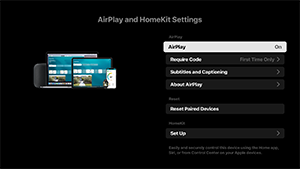
[AirPlay]
[ON] (enabled) or [OFF] (disabled) connections.
[Require Code]
You can choose how often to require a passcode.
[Subtitles and Captioning]
You can choose to enable or disable subtitles, and set subtitle size, color, and more.
Note
- If you're using AirPlay in Pro mode, we recommend using Restore AirPlay Settings.
[Reset Paired Devices]
You can reset the paired devices.
HomeKit Settings
You can set the room, name, notifications, and more.
[Initial setup]
Sets up the basic features such as network and channels for first time use.
[Restart]
Restarts the LCD Monitor/LCD Display.