


Rewards & Pay menu
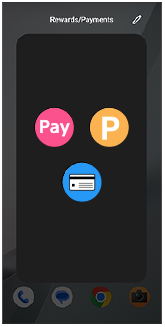
You can display the icons of your frequently used payment and reward apps prominently in the Rewards & Pay menu by pressing the power button twice. This allows you to quickly select and launch the apps. You need to register the apps to the Rewards & Pay menu in advance.
-
Press the power button twice.The Rewards & Pay menu will appear over the currently displayed screen.
-
If you open an app from the Rewards & Pay menu, an app switch menu will be shown in the lower right of the screen. Tap the following to return to the Rewards & Pay menu.
 (Menu)
 -
To close the Rewards & Pay menu, tap outside the menu area or tap the following button.
 (Back)
-
Note
-
To use this feature, find and tap as follows.
[Settings] > [System] > [Gestures] > [Double press power button]
Then, turn the switch on and select the option as follows.
[Use double press] > [Rewards & Pay menu]
Hint
-
Instead of pressing the power button twice, you can also use the Rewards & Pay menu from a shortcut on the Home screen. To create a shortcut, touch and hold an empty area on the Home screen, and then tap as follows.
[Widgets] >[Rewards & Pay menu] > [Open menu]
-
When you launch another app consecutively from the Rewards & Pay menu, the previously opened app icon is added to the app switch menu. This is convenient when switching between multiple apps and using them continuously. The history is cleared when you exit the Rewards & Pay menu.
To register apps to display in the Rewards & Pay menu
The Rewards & Pay menu has three screens, each allowing you to register up to eight apps. Swipe the screen left or right to select one of the three screens.
-
Press the power button twice.
-
Tap as follows, and then select the app you want to register.
 (Edit) >
  (Add)
(Add)
Hint
-
You can set a name for each screen. On the Rewards & Pay menu screen, tap as follows to edit the name.
(Edit) > [Edit name]
To remove apps from the Rewards & Pay menu
-
Press the power button twice.
-
Tap the following button.
(Edit)Then, tap the following in the upper right corner of the app you want to delete.
 (Delete)