


Connecting to a BRAVIA (TV)
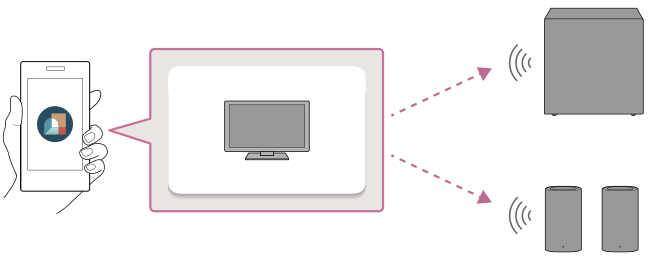
Be sure to launch or install the “Sony | BRAVIA Connect” app from the link in step 3 on this page.
The guidance for installing and connecting the unit starts on the app.
If you have installed the app already, be sure to update the app to the latest version before beginning the steps below. After updating the app, proceed to step 1 without launching the app.
Go to the website where you can update the app to the latest version.
-
Update the software of the BRAVIA (TV) to the latest version.
You can check the update method of the software at the link below.
-
Turn on the BRAVIA (TV).
-
Tap the following link (blue text), then start the setup of the unit with the app.
Note
- Your IP address and device identifier information will be shared with Sony corporation’s service providers when you install or launch the app.
Connecting BRAVIA Theatre Sub 7
Start the setup of BRAVIA Theatre Sub 7 with the app.

Connecting BRAVIA Theatre Rear 8
Start the setup of BRAVIA Theatre Rear 8 with the app.

Hint
- When connecting both BRAVIA Theatre Sub 7 and BRAVIA Theatre Rear 8, you can start with either speaker connection procedure. Follow the guidance on the app screen, and you will see the connection guidance for each speaker.
- Perform the same procedure when connecting optional Sony wireless speakers other than BRAVIA Theatre Sub 7 or BRAVIA Theatre Rear 8 together. Follow the guidance on the app screen, and you will see the connection guidance for each speaker.
- You may not be able to launch or install the app by tapping the link above or scanning the QR code below. In this case, tap the link corresponding to your smartphone on the displayed web page to launch or install the app. Then, proceed to step 4.
If you are viewing this Help Guide on a computer, scan the QR code below with your smartphone.
Connecting BRAVIA Theatre Sub 7
Connecting BRAVIA Theatre Rear 8
-
Follow the guidance on the app screen to continue setting up the unit.
First, select the BRAVIA (TV) to which you want to connect the unit.
If a notification of a software update for the unit is displayed, follow the guidance on the app screen. Similarly, follow the guidance on the app screen for installation and connection of the unit.Hint
- If the BRAVIA (TV) has not been registered on the app, you will need to register the BRAVIA (TV) on the app before connecting the unit. Follow the guidance on the app screen.
- If the BRAVIA (TV) has been registered on the app, select the BRAVIA (TV) to which you want to connect the unit on the app screen first. Then, connect the unit to the BRAVIA (TV) with one of the following procedures.
- If you have connected one or more wireless speakers to the BRAVIA (TV)
Tap [Settings] - [Connection settings] - [Wireless Speaker Connection]. - If you have not connected a wireless speaker to the BRAVIA (TV) yet
Tap [Settings] - [Wireless Speaker Connection].
- If you have connected one or more wireless speakers to the BRAVIA (TV)