


Updating the Software
When new software is available, a notification will appear on the remote control screen on the app. Update the software by following the screen on the app.
Note
- Before starting updating, check the following.
- The wireless amplifier is turned on and connected to the subwoofer.
- The BLUETOOTH function is turned on.
-
Access the support page by following the screen on the app and save the software update file to a USB memory.
-
Connect the USB memory prepared in step 1 to the UPDATE port on the rear of the subwoofer.
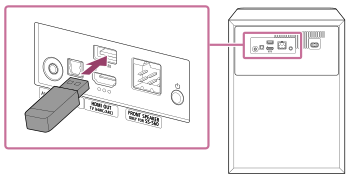
Software updates will begin automatically.
During the update, the main status indicator on the subwoofer and the power indicator on the wireless amplifier flash slowly, alternating between white and blue.
When the update is complete, the main status indicator on the subwoofer will flash in white every 2 seconds.
-
Remove the USB memory.
Hint
- When software updates are available, we will also notify you on our support page. For the support page, see “Customer Support Website.”
TP1001843890