


Connecting to a Main Audio Device such as a Sound Bar that Supports the “Sony | BRAVIA Connect” App
Be sure to launch or install the “Sony | BRAVIA Connect” app from the link in step 1 on this page.
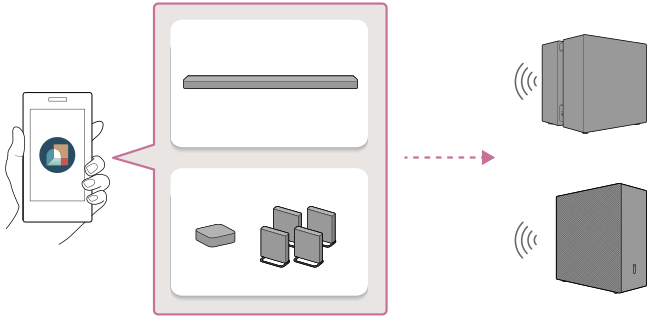
The guidance for installing and connecting the subwoofer starts on the app.
If you have installed the app already, be sure to update the app to the latest version before beginning the steps below. After updating the app, proceed to step 1 without launching the app.
Go to the website where you can update the app to the latest version.
-
Tap the following link (blue text), then start the setup of the subwoofer with the app.
Note
- Your IP address and device identifier information will be shared with Sony corporation’s service providers when you install or launch the app.
Connecting BRAVIA Theatre Sub 9
Start the setup of BRAVIA Theatre Sub 9 with the app.

Connecting BRAVIA Theatre Sub 8
Start the setup of BRAVIA Theatre Sub 8 with the app.

Hint
- Perform the same procedure when connecting optional Sony wireless speakers other than BRAVIA Theatre Sub 9 or BRAVIA Theatre Sub 8 together. Follow the guidance on the app screen, and you will see the connection guidance for each speaker.
- You may not be able to launch or install the app by tapping the link above or scanning the QR code below. In this case, tap the link corresponding to your smartphone on the displayed web page to launch or install the app. Then, proceed to step 2.
If you are viewing this Help Guide on a computer, scan the QR code below with your smartphone.
Connecting BRAVIA Theatre Sub 9

Connecting BRAVIA Theatre Sub 8

-
Follow the guidance on the app screen to continue setting up the subwoofer.
First, select the device to which you want to connect the subwoofer.
If a notification of a software update for your main audio device (such as a sound bar) is displayed, follow the guidance on the app screen. Similarly, follow the guidance on the app screen for installation and connection of the subwoofer.Hint
- If the initial setup of your main audio device (such as a sound bar) has not been completed, you will need to set up your main audio device before connecting the subwoofer. Follow the guidance on the app screen.
- If the initial setup of the main audio device (such as a sound bar) has been completed, select the main audio device to which you want to connect the subwoofer on the app screen, then connect the subwoofer by tapping [Settings] - [Wireless Speaker Settings] - [Wireless Speaker Connection].