


Controlling the camera using a smartphone (NFC One-touch remote)
You can connect this product to an NFC-enabled smartphone by touching them together and then operate the product using the smartphone.
Make sure that [Ctrl w/ Smartphone] is set to [On] by selecting MENU →  (Network) → [Ctrl w/ Smartphone].
- Activate the NFC function of the smartphone.
- On an iPhone, launch Imaging Edge Mobile, and then select [Connect with the camera through One-touch (NFC)] under [Connect with a new camera].
- Switch this product to shooting mode.
- The NFC function is available only when the
 (N-Mark) is displayed on the screen.
- The NFC function is available only when the
- Keep touching the smartphone to the camera for 1 to 2 seconds.
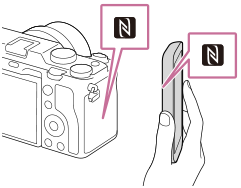
The smartphone and the camera are connected.
- You can shoot an image via remote control while checking the composition of the image on the Imaging Edge Mobile screen.
About “NFC”
NFC is a technology that enables short-range wireless communication between various devices, such as mobile phones or IC tags, etc. NFC makes data communication simpler with just a touch on the designated touch-point.
- NFC (Near Field Communication) is an international standard of short-range wireless communication technology.
Note
- To ensure a secure wireless LAN connection, we strongly recommend using an access point with WPA2 security settings. Connecting to an access point without security settings may result in hacking, access from malicious third parties, or attacks on vulnerabilities. Unless there is a specific reason, we do not recommend using an access point without security settings.
- If you cannot make a connection, do as the following:
- Launch Imaging Edge Mobile on your smartphone, and then move the smartphone slowly toward the (N-Mark) of this product.
- If the smartphone is in a case, remove it.
- If the product is in a case, remove it.
- Check whether the NFC function is activated on your smartphone.
- Launch Imaging Edge Mobile on your smartphone, and then move the smartphone slowly toward the
- Radio wave interference may occur as Bluetooth communications and Wi-Fi (2.4 GHz) communications use the same frequency band. If your Wi-Fi connection is unstable, it may be improved by turning off the Bluetooth function of the smartphone. If you do this, the location information link function is not available.
- When [Airplane Mode] is set to [On], you cannot connect this product and the smartphone. Set [Airplane Mode] to [Off].
- If this product and the smartphone are connected when the product is in playback mode, the displayed image is sent to the smartphone.
