


Charging
The headset contains a built-in lithium-ion rechargeable battery. Use the USB Type-C cable to charge the headset before use.
-
Connect the headset to an AC outlet.
Use a USB Type-C cable and USB AC adaptor (A).
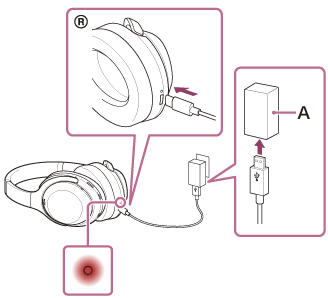
The charging indicator on the headset lights up in red.
When charging is complete, the charging indicator turns off automatically.
After charging is complete, disconnect the USB Type-C cable.
About the charging time
The required time for fully charging the headset is about 3 hours (*).
(*) Time required for charging an empty battery to its full capacity. The charging time may differ depending on the conditions of use.
System requirements for battery charge using USB
-
Commercially available USB AC adaptor
A commercially available USB AC adaptor with a Type-C connector capable of supplying an output current of 1.5 A (1 500 mA) or more (Models for countries and regions excluding Chinese mainland)
A commercially available USB AC adaptor capable of supplying an output current of 1.5 A (1 500 mA) or more (Models for Chinese mainland)
-
Commercially available USB cable (Models for countries and regions excluding Chinese mainland)
A commercially available USB Type-C cable (compliant with USB standards)
-
Personal computer
The computer equipped with a USB port as a standard
- We do not guarantee that the operating procedures will work on all computers.
- The operating procedures on a self-made computer are not guaranteed.
Usage hours
- If the headset is not used for a long time, the battery usage hours may be temporarily reduced. Performance will return to normal after several cycles of charging and use.
- If you do not use your headset for several months, charge it at least once every 6 months to prevent battery deterioration due to over-discharge.
- If the usage hours of the built-in rechargeable battery decrease significantly, the battery should be replaced. Consult your nearest Sony dealer.
Hint
- The headset can be also charged by connecting the headset to a running computer using the USB Type-C cable.
Note
- If a USB Type-C cable is supplied, be sure to use it.
- After charging is complete, disconnect the USB Type-C cable.
- Charging may not be successful depending on the type of USB AC adaptor.
- The headset cannot be charged when the computer goes into standby (sleep) or hibernation mode. In this case, change the computer settings, and start charging once again.
- If the headset is not used for a long time, it may take longer to charge the battery.
-
If the headset detects an abnormality during charging due to the following causes, the charging indicator flashes in red. In this case, charge once again within the charging temperature range. If the problem persists, consult the Sony support contact or your nearest Sony dealer.
- Ambient temperature exceeds the charging temperature range of 5 °C to 35 °C (41 °F to 95 °F).
- There is a problem with the rechargeable battery.
- If you charge the headset after it has not been used for a long period, the charging indicator may not light up in red immediately. Please wait a moment until the charging indicator lights up.
- Avoid exposure to extreme temperature changes, direct sunlight, moisture, sand, dust, and electrical shock. Never leave the headset in a parked vehicle.
- When connecting the headset to a computer, make sure to connect it directly to the computer with a USB Type-C cable. Charging will not be properly completed when the headset is connected through a USB hub.