


Structure of the Streaming Screen
The Streaming screen displays the devices that perform streaming and controls for starting/stopping streaming.
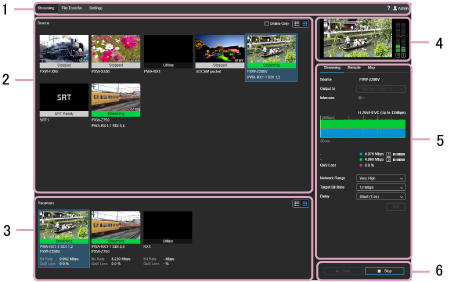
1. Global header
Click the tabs and icons to move between screens.
- Streaming: Displays the Streaming screen.
- File Transfer: Displays the File Transfer screen.
- Settings: Displays the Settings screen.
-
 (Warning): Warns you that the expiration date for the SSL/TLS certificate for connecting to the Connection Control Manager admin screen is approaching. Update the SSL/TLS certificate as described in “Configuring an SSL/TLS Certificate.”
 -
 (Notification): Displays a note about the license expiration date.
 -
 (Help): Displays the Help and EULA.
 -
 (user name): Logs the user out.
2. Source area
Displays the streaming output devices in thumbnail view or list view.
In thumbnail view, the thumbnails and the following information are displayed. The transmitting device recording status ([REC] for recording, [STBY] for standby) is also displayed on the thumbnails.
- Streaming status: Streaming, Unstable, Stopped, Reserved, Disabled, Offline, SRT Ready
- Transmitting device name: Type of camcorder, type of XDCAM pocket device, SRT Caller name, or RX1-(serial No.)*
* Displayed when using point-to-point - Receiving device name: RX1-(serial No.)
In list view, only the names of transmitting devices and names of receiving devices are displayed.
- [Online Only] checkbox: Displays online (including SRT Ready) devices only.
-
 button: Displays the devices in list view.
 -
 button: Displays the devices in thumbnail view.
3. Receiver area
Displays the streaming receiving devices in thumbnail view or list view.
In thumbnail view, the thumbnails and the following information are displayed. The  icon is displayed on the thumbnails when streaming video is saved to a file on the PWA-RX1 side. The
  icon is displayed on the thumbnails when RTMP output is enabled.
- Streaming status: Streaming, Unstable, Stopped, Reserved, Disabled, Offline, SRT Ready
- Transmitting device name: Type of camcorder, type of XDCAM pocket device, SRT Caller name, or RX1-(serial No.)*
* Displayed when using point-to-point - Receiving device name: RX1-(serial No.)
- Bit rate
- Streaming loss rate
In list view, only the names of transmitting devices and names of receiving devices are displayed.
-
button: Displays the devices in list view.
-
button: Displays the devices in thumbnail view.
4. Preview area
Displays a preview of the streaming content from the device selected in the Source area.
Note
- There is short delay between the display of the preview display and the SDI output.
- The preview display refresh time differs from that of the SDI output.
5. Settings area
Configures streaming settings for the selected source.
[Streaming] tab
- Source: Displays the name of the streaming device.
- Output to: Selects the PWA-RX1 or SDI port streaming output destination. Cannot be modified while streaming is in progress.
- Intercom: Turns the intercom function on/off. It also displays the status of the intercom function. For details about the status, see “Intercom Operations.”
- Graph: Displays the variation in the bit rate, streaming loss rate, and codec.
- Carrier: Displays the name of the network carrier used for communication with the camcorder and the bit rate. The information displayed varies depending on the connected camcorder and camcorder status.
- QoS Loss: Displays the streaming loss rate.
- Network Range: Selects the streaming resolution and maximum bit rate. [Very High], [High], [High (F)], [High (R)], [Middle], [Low], or [Very Low] can be selected. The values available for selection vary depending on the connected camcorder and camcorder status.
- Target Bit Rate: Selects the target bit rate when [Use Target Bit Rate setting.] on the [CCM] tab is set to on. The bit rate options available for selection varies according to the [Network Range] setting.
- Delay: Selects the streaming delay time. [Very Short (0.7s)], [Very Short (1s)], [Short (1.5s)], [Middle (3s)], [Long (5s)], or [Very Long (10s)] can be selected (the displayed delay time is an estimate. The actual delay time may vary due to the added network delay).
- [Set] button: Applies changes to the [Network Range], [Target Bit Rate], and [Delay] settings.
Note
- When using SRT, [Network Range], [Target Bit Rate], and [Delay] cannot be configured. The RX settings on the Settings screen and the settings on the SRT caller side are used.
[Remote] tab
Note
- Each function is enabled only for supported camcorders.
- The displayed buttons, switches, and control panels vary depending on the connected camcorder.
- [Camera Control] switch: Enables remote control of the camcorder.
- [Proxy REC] switch: Sets whether to record a proxy file on the camcorder.
[Map] tab
Note
- This function is enabled only for supported camcorders.
- [Show Location] button: Displays the current location of the camcorders on a map.
6. Streaming control area
Controls streaming operation.
- [Start] button: Starts streaming. When using SRT, the receiver goes online in SRT listener mode. Follow the instructions on the screen to start streaming from the SRT caller.
- [Stop] button: Stops streaming.
