


Structure of the File Transfer Screen
The File Transfer screen is used to configure settings for transferring clips from a camcorder to an FTP server. It is used to specify the clips to transfer and to control transfer jobs.
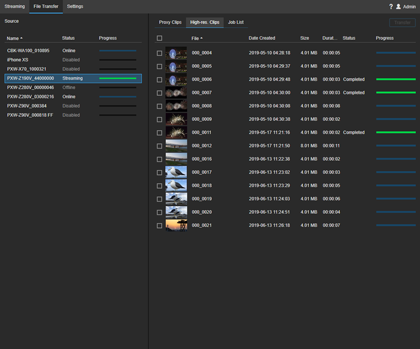
Source area
Displays the devices for file transfer in list view.
[Proxy Clips] tab
Displays a list of proxy clips stored on the device selected in [Source]. Select clips to transfer by placing a check mark in the checkbox beside each clip.
- File transfer destination: Select the file transfer destination from the drop-down list. You can specify the file transfer destination for each file transfer. Depending on the type and settings of the selected device, it may not be possible to specify a transfer destination.
- Transfer button: Adds the selected clips to the transfer job list.
[High-res. Clips] tab
Displays a list of original clips stored on the device selected in [Source]. Only clips recorded in parallel (proxy clips recorded simultaneously) can be previewed. Select clips to transfer by placing a check mark in the checkbox beside each clip.
- File transfer destination: Select the file transfer destination from the drop-down list. You can specify the file transfer destination for each file transfer. Depending on the type and settings of the selected device, it may not be possible to specify a transfer destination.
- Transfer button: Adds the selected clips to the transfer job list.
[Job List] tab
Displays a list of clip transfer jobs executed on the [Proxy Clips] tab or [High-res. Clips] tab, and the current transfer status.
- Delete: Deletes the selected job from the list.
- Clear Completed Jobs: Deletes jobs after completion of transfer to an FTP server from the list.
