


Adjusting the volume
Adjust the volume for “Music player”.
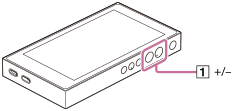
- Press the +/– (volume) button (
 ).
To adjust the volume with the volume dialog
-
Turn on the screen of the player.
-
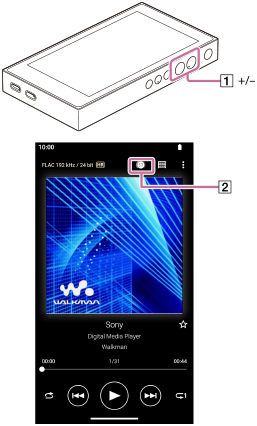
Display the volume dialog in one of the following ways:
Press the +/– (volume) button () to display the volume panel. Tap the volume scale or the digits on the panel.
Tap the volume dialog button ( ) in the top right of the screen.
-
Adjust the volume with the volume dialog.
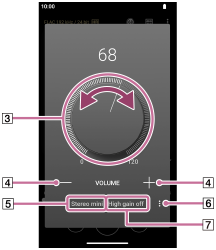
 Volume knob
 +/– (volume)
 Current sound output (Stereo mini or Balanced standard)
 Options button (Line-out mode settings) (*1)
 Current setting for [Line-out mode] of the current sound output (on or off) (*1)
*1 This menu item is displayed as “High gain output” in some countries or regions.
-
Turn the volume knob (
) to adjust the volume.The volume for the current sound output (
) will be adjusted.You can also tap or hold down +/– (volume) (
) to adjust the volume.
Hint
-
You can also display the volume dialog from the Quick Settings panel. On the [WALKMAN Home] screen, swipe down on the status bar. Then, tap the volume icon in the Quick Settings panel.
-
Tap the volume dialog button in the top right of the following screens to display the volume dialog.
- Playback screen
- Library screen
- Play queue screen
- Favorites screen
- Sound adjustment screens
-
For users of the [High gain output setting] (Note: Not applicable to [Line-out mode settings])
The volume may be low when you use certain headphones. In this case, switch the output setting to High Gain.
Tap
 (Options) () to display the High gain output panel. Then, tap the switch next to the type of headphone jack that you are using.
-
When you switch between the headphone jack (Balanced Standard) and the headphone jack (Stereo Mini), the volume may become unexpectedly loud. To avoid loud volumes, the player may lower the volume automatically.
Note
-
The volume level may be too high or too low when you listen to music using an app other than “Music player”. In this case, adjust the volume according to the following procedure.
Tap
 (Setting) on the volume panel, and adjust the volume level for [Media volume].
Then, adjust the volume with the +/– (volume) buttons (
) or the volume dialog. -
The volume level of “Music player” may be too high or too low if you have adjusted the volume while you used another app. In this case, adjust the volume with the +/– (volume) buttons (
) or the volume dialog. -
You cannot adjust the volume with the volume dialog in the following cases. Adjust the volume using the connected device.
- When sound is output through a Bluetooth device that is connected to the player.
- When sound is output through a USB device that is connected to the player.
- Do not connect headphones when line-out mode is on.
Limiting the volume
The AVLS (Automatic Volume Limiter System) function reduces the risk of damage to ears from loud volumes. Using AVLS limits the maximum volume.
AVLS has the following features.
- AVLS limits the volume to a certain level.
- AVLS prevents disturbances to others caused by loud volumes.
- AVLS reduces risks that occur when you cannot hear ambient sound.
- AVLS allows you to listen at a more comfortable volume.
-
Swipe the [WALKMAN Home] screen upwards.
-
Tap the menu items in the following order.
 [Settings] - [Sound].
-
Tap the [AVLS (volume limit)] switch.
Note
-
AVLS (volume limit) is not effective in the following cases.
- When sound is output through a Bluetooth device that is connected to the player.
- When sound is output through a USB device that is connected to the player.

The contents of the Help Guide may be subject to change without notice due to updates to the product's specifications.