


[WALKMAN Home] screen
The [WALKMAN Home] screen is a home screen customized for music playback. It features the Music player widget so that you can control music playback without launching an app. Also, the apps related to music are displayed.
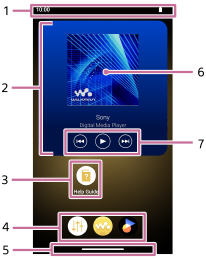
- Status bar
The status of the player and notifications appear as icons.
Swipe down on the status bar to display the notification panel and the Quick Settings panel. - Music player widget
The widget shows the current track of “Music player”.
- Shortcuts to apps
Tap a shortcut to launch an app.
- Dock
You can add up to 5 shortcuts for apps.
- Navigation bar
Swipe up from the bottom edge of the screen to display the [WALKMAN Home] screen.
- Cover art
Tap the area to launch “Music player”.
- Previous button / Play (Pause) button / Next button
Tap the buttons to control music playback without launching an app.
Other Navigation operations
-
To return to the previous screen
Swipe from the left or right edge towards the center of the screen and then release your finger when an arrow icon appears at the left or right edge of the screen.
-
To display recently used apps
Swipe up from the bottom edge of the screen and hold your finger around the center of the screen.
About the shortcuts to apps on the dock
Apps such as the following are preinstalled on the player.
-
 [Sound adjustment]
Use the app to adjust the sound. You can directly adjust the sound for the player. This is useful when you play content using apps other than “Music player”. -
 [Music player]
Use the app to play music content stored on the player. Prepare music content in the following ways.- Transferring music content from your computer to the player.
- Purchasing music content from online music services.
-
 [Sony | Sound Connect]
Use the app to register and set up your headphones.
Hint
-
If you select [Page 2 (WALKMAN® Home)] for [Select Home screen] during the initial setup, the [WALKMAN Home] screen will appear when you swipe up from the bottom edge of the screen.
-
You can change the main home screen after the initial setup.
On the home screen, hold down an empty space.
Tap the menu items in the following order.
[Home settings] - [Select Home screen].
Select the desired home screen. - To operate with the 3-button navigation bar,
 (home),
 (back), and
 (overview), select
 [Settings] - [System] - [Gestures] - [Navigation mode] - [3-button navigation].
Note
- Please note that Sony does not accept responsibility for any problems due to apps or services from other companies. Check the terms of service from each provider before use.

The contents of the Help Guide may be subject to change without notice due to updates to the product's specifications.