


Connecting to an STR-AN1000, STR-AZ7000ES, STR-AZ5000ES, STR-AZ3000ES, STR-AZ1000ES, or TA-AN1000 AV Receiver/Amplifier
STR-AN1000, STR-AZ7000ES, STR-AZ5000ES, STR-AZ3000ES, STR-AZ1000ES, and TA-AN1000 AV receivers/amplifiers do not support the “Sony | BRAVIA Connect” app. Display the setting screen of the AV receiver/amplifier on the TV screen to operate the connection procedure.
The AV receiver/amplifier may not connect to the rear speaker until the software of the AV receiver/amplifier is updated.
-
Turn on the AV receiver/amplifier to which the rear speaker is connected as well as the TV, and switch the TV input to the AV receiver/amplifier.
It takes a while for the AV receiver/amplifier to start up. The operation can be performed when [HELLO] or [PLEASE WAIT] disappears from the display panel.
-
Update the software of the AV receiver/amplifier to the latest version.
The procedure for updating the software depends on whether the initial setup of the AV receiver/amplifier has been completed.
Note
- The Help Guide for the AV receiver/amplifier may suggest updating the software with the optional speakers connected to the AV receiver/amplifier, but update the software of the AV receiver/amplifier without connecting the rear speaker.
If the initial setup of the AV receiver/amplifier has already been completed (if you are already using it)
- Press HOME on the remote control supplied with the AV receiver/amplifier and select [Setup] - [Software Update] - [Network Update] on the home menu displayed on the TV screen.
- Follow the on-screen instructions on the TV screen to update the software.
If the initial setup of the AV receiver/amplifier has not been completed (e.g., immediately after purchasing the AV receiver/amplifier)
- Press HOME on the remote control supplied with the AV receiver/amplifier.
- Follow the instructions on the TV screen to set the language to be displayed on the screen, select [Internet Settings] on the displayed screen, follow the on-screen instructions to complete the connection of the AV receiver/amplifier to the Internet, then select [OK].
Do not proceed to the next setting.
- Press HOME on the remote control supplied with the AV receiver/amplifier and select [Setup] - [Software Update] - [Network Update] on the home menu displayed on the TV screen.
- Check the software update progress in the display panel of the AV receiver/amplifier.
The progress rate is displayed in percentage (“XXX%”).
When the update is completed, [COMPLETED] appears in the display panel and the AV receiver/amplifier restarts automatically.
Hint
- You can also update the AV receiver/amplifier software to the latest version by downloading the latest software from Sony’s support page to a USB memory.
For details, refer to the Help Guide for the AV receiver/amplifier.
-
Connect the AC power cord (mains lead) to the AC inlet on the rear speaker, then connect to the AC outlet (mains).
Turn on all the speakers to be connected.
For information on installation, see “Related Topic” listed at the bottom of this page.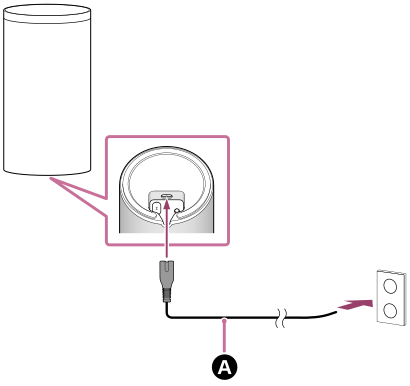
 AC power cord (mains lead) (supplied)
-
Check that the power indicator on the rear speaker lights in white.
When the power indicator lights in white, the connection between the rear speaker and the AV receiver/amplifier is complete.
Note
- The Help Guide for the AV receiver/amplifier may state that the power indicator lights in green, but the power indicator on the rear speaker is white.
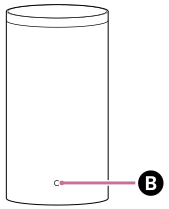
 Power indicator
If the rear speaker does not automatically connect to the AV receiver/amplifier or if you replace another rear speaker that is already connected to the AV receiver/amplifier with this rear speaker
The rear speaker must be connected manually to the AV receiver/amplifier.
For instructions on how to connect manually, refer to “Connecting Sony wireless rear speakers/subwoofer” in the Help Guide for the AV receiver/amplifier. You can connect the rear speaker to the AV receiver/amplifier with the same operation.
Note
- If the optional subwoofer has been connected already, it must also be connected manually again.
-
Press HOME on the remote control supplied with the AV receiver/amplifier and perform sound field optimization by selecting [Setup] - [Speaker Settings] - [Auto Calibration] in the home menu.