


Connecting the headset to a computer or PlayStation®5
Before starting the operating procedure, check the following.
- The operating instructions of the computer or PS5™ is in hand.
-
Connect the headset to a USB port of a computer or a PS5™ controller.
When you connect the headset to a computer
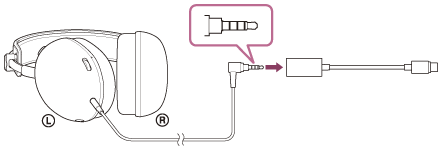
- Connect the 4-pole L-type plug of the headphone cable to the supplied USB Type-C audio box.
The connecting device side is a CTIA compliant cable with 4-pole specifications including the microphone.- CTIA: Cellular Telephone Industry Association
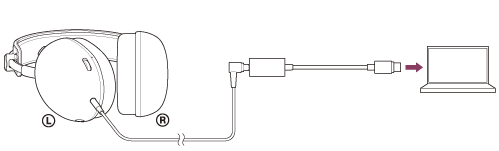
- Connect the USB Type-C audio box to the USB port of a computer.
When you connect the headset to a PS5™
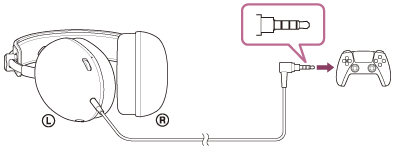
- Connect the 4-pole L-type plug of the headphone cable to the headphone terminal on a PS5™ controller.
- Connect the 4-pole L-type plug of the headphone cable to the supplied USB Type-C audio box.
-
When you connect the headset to a computer, select the headset as the audio device.
Audio input/output device: [INZONE H6 Air]
To adjust the volume
For information on how to adjust the volume and turn the microphone on and off, see “What you can do while connected to a game console”.
Note
- Connection through the USB Type-C audio box is not guaranteed with a PS5™. Follow the procedures described above to connect to the PS5™.
- Connect the USB Type-C audio box directly to the computer, and not via a USB hub.
- If you connect the headset to a device other than a computer through the USB Type-C audio box, the following may occur.
- No sound is output.
- Sound is low although the volume setting is max.
- Use the supplied headphone cable only.
- When plugging or unplugging the cable, hold the plug and plug it straight into the headphone cable input jack. Pulling on the cable or applying excessive force may cause it to break.
- Make sure the plug is fully inserted. If the plug is not fully inserted, sound may not be heard.
TP1002109292