


Structure of the Streaming Screen
The Streaming screen displays the devices that perform streaming and controls for starting/stopping streaming.
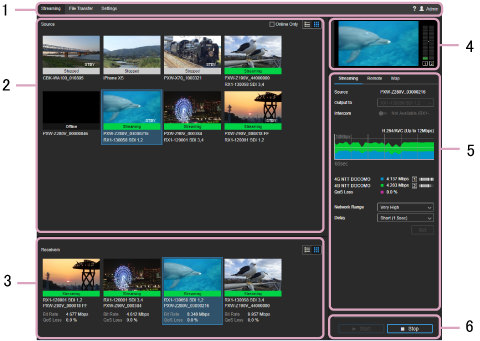
1. Global header
Click the tabs and icons to move between screens.
- Streaming: Displays the Streaming screen.
- File Transfer: Displays the File Transfer screen.
- Settings: Displays the Settings screen.
-
 (Warning): Warns you that the expiration date for the server certificate for connecting to the Connection Control Manager admin screen is approaching. Update the server certificate as described in “Updating a Certificate.”
 -
 (Notification): Displays a note about the license expiration date.
 -
 (Help): Displays the Help and EULA.
 -
 (user name): Logs the user out.
2. Source area
Displays the streaming output devices in thumbnail view or list view.
In thumbnail view, thumbnails, streaming status (Streaming/Unstable/Stopped/Reserved/Disabled/Offline/SRT Ready), names of transmitting devices (camcorder model, XDCAM pocket, or SRT caller), and names of receiving devices (PWS-110RX1A) are displayed. The transmitting device recording status ([REC] for recording, [STBY] for standby) is also displayed on the thumbnails.
In list view, only the names of transmitting devices and names of receiving devices are displayed.
- Online Only checkbox: Displays online (including SRT Ready) devices only.
-
 button: Displays the devices in list view.
 -
 button: Displays the devices in thumbnail view.
3. Receiver area
Displays the streaming receiving devices in thumbnail view or list view.
In thumbnail view, thumbnails, streaming status (Streaming/Unstable/Stopped/Reserved/Offline), names of transmitting devices (camcorder model or XDCAM pocket), names of receiving devices (PWS-110RX1A units), bit rate, and streaming loss rate are displayed. The  icon is displayed on the thumbnails when streaming video is saved to a file on the PWS-110RX1A side. The
  icon is displayed on the thumbnails when RTMP output is enabled.
In list view, only the names of transmitting devices and names of receiving devices are displayed.
-
button: Displays the devices in list view.
-
button: Displays the devices in thumbnail view.
4. Preview area
Displays a preview of the streaming content from the device selected in the Source area.
Note
- There is short delay between the display of the preview display and the SDI output.
- The preview display refresh time differs from that of the SDI output.
5. Settings area
Configures streaming settings for the selected source.
Streaming tab
- Source: Displays the name of the streaming device.
- Output to: Selects the PWS-110RX1A or SDI port streaming output destination. Cannot be modified while streaming is in progress.
- Intercom: Turns the intercom function on/off. It also displays the status of the intercom function. For details about the status, see “Intercom Operations.”
- Graph: Displays the variation in the bit rate, streaming loss rate, and codec.
- Carrier: Displays the name of the network carrier used for communication with the camcorder and the bit rate. The information displayed varies depending on the connected camcorder and camcorder status.
- QoS Loss: Displays the streaming loss rate.
- Network Range: Selects the streaming resolution and maximum bit rate. [Very High], [High], [High (F)], [High (R)], [Middle], [Low], or [Very Low] can be selected. The values available for selection vary depending on the connected camcorder and camcorder status.
- Target Bit Rate: Selects the target bit rate when [Use Target Bit Rate setting.] is set on the [CCM] tab. The bit rate options available for selection varies according to the [Network Range] setting.
- Delay: Selects the streaming delay time. [Very Short (0.7s)], [Very Short (1s)], [Short (1.5s)], [Middle (3s)], [Long (5s)], or [Very Long (10s)] can be selected (the displayed delay time is an estimate. The actual delay time may vary due to the added network delay).
- Set button: Applies changes to the [Network Range], [Target Bit Rate], and [Delay] settings.
Note
- When using [SRT], the [Network Range], [Target Bit Rate], and [Delay] settings cannot be configured. The RX settings on the Settings screen and the settings on the SRT caller side are used.
Remote tab
Note
- Each function is enabled only for supported camcorders.
- The displayed buttons, switches, and control panels vary depending on the connected camcorder.
- Camera Control switch: Enables remote control of the camcorder.
- Proxy REC switch: Sets whether to record a proxy file on the camcorder.
Map tab
Note
- This function is enabled only for supported camcorders.
- Show Location button: Displays the current location of the camcorders on a map.
6. Streaming control area
Controls streaming operation.
- Start button: Starts streaming. When using SRT, the receiver goes online in SRT listener mode. Follow the instructions on the screen to start streaming from the SRT caller.
- Stop button: Stops streaming.
