


Connecting to a TV
Make sure that your TV is compatible with eARC/ARC
When your TV has an HDMI input jack labeled “eARC” or “ARC”
See “Connecting a TV compatible with eARC/ARC.”
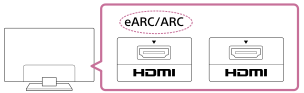
When your TV does not have an HDMI input jack labeled “eARC” or “ARC”
See “Connecting a TV that is not compatible with eARC/ARC.”

Connecting a TV compatible with eARC/ARC
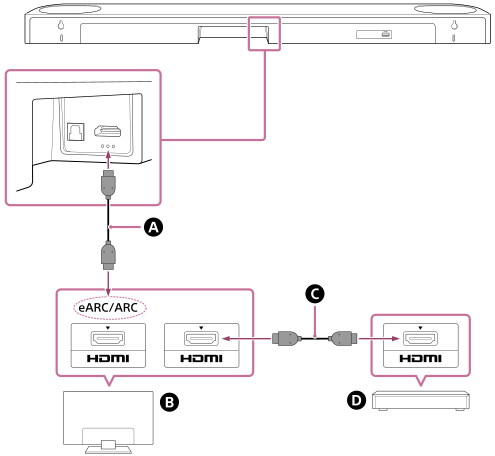
 HDMI cable (supplied)
 TV
TV
 HDMI cable (not supplied)
 Blu-ray Disc player, set-top box, cable box, satellite box, gaming console, etc.
-
Connect to a TV.
Connect the HDMI jack compatible with eARC/ARC on the TV and HDMI OUT (TV (eARC/ARC)) jack on the speaker system with the HDMI cable (supplied).
Connect external devices (such as Blu-ray Disc player, set-top box, cable box, satellite box, gaming console, etc.) to the TV with an HDMI cable (not supplied).
-
Change the TV settings so that TV sound can be output from the speaker system.
Depending on your TV, this may be set automatically when the speaker system is connected. For details, refer to the operating instructions of your TV.
-
Enable eARC on both the speaker system and the TV.
If the TV that is connected to the speaker system is compatible with eARC/ARC, the eARC function is available.
To enjoy higher quality audio formats such as Dolby Atmos played on an external device connected to the TV, check that the eARC setting is enabled on the speaker system and TV.
- eARC setting for the TV: Refer to the operating instructions of your TV.
- eARC setting for the speaker system: The setting is enabled by default.
Note
- Check that the connectors are firmly inserted.
- If the speaker system is not connected to the eARC/ARC-compatible HDMI input of the TV, the TV sound cannot be output from the speaker system.
- Enable the Control for HDMI function on the TV. If the Control for HDMI function on the TV is not enabled, the speaker system does not output TV sound.
- By enabling the eARC function on the TV, some features on the TV may become limited. For instance, system sounds and voice response may not be output. For details, refer to the operating instructions of your TV.
- The types and number of devices that can be controlled by the Control for HDMI function are limited by the HDMI CEC standard as follows.
- Recording devices (Blu-ray Disc recorder, DVD recorder, etc.): Up to 3 devices
- Playback devices (Blu-ray Disc player, DVD player, etc.): Up to 3 devices
- Tuner-related devices: Up to 4 devices
- Audio system (receiver/headphones): Up to 1 device (used by this speaker system)
Hint
- There are three tactile dots that are about 1 mm (1/16 in) in size under the HDMI OUT (TV (eARC/ARC)) jack. Use them as a guide during connection.
- For the supported audio formats, see “Supported Audio Formats.”
Connecting a TV that is not compatible with eARC/ARC
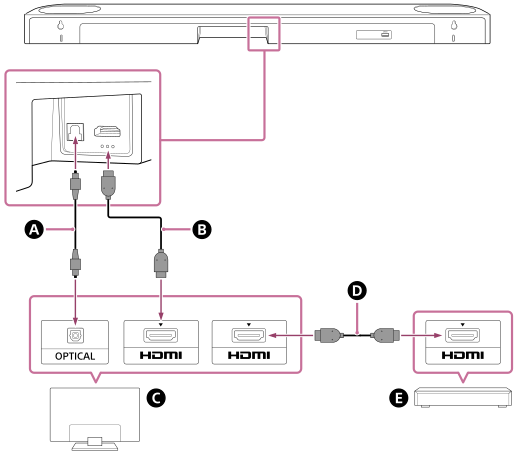
Optical digital cable (not supplied)
HDMI cable (supplied)
TV
HDMI cable (not supplied)
 Blu-ray Disc player, set-top box, cable box, satellite box, gaming console, etc.
-
Connect the HDMI input jack on the TV and the HDMI OUT (TV (eARC/ARC)) jack on the speaker system with the HDMI cable (supplied).
Connect external devices (such as Blu-ray Disc player, set-top box, cable box, satellite box, gaming console, etc.) to the TV with an HDMI cable (not supplied).
-
Connect the optical digital output jack on the TV and the TV IN (OPTICAL) jack on the speaker system with an optical digital cable (not supplied).
-
Change the TV settings so that TV sound can be output from the speaker system.
Depending on your TV, this may be set automatically when the speaker system is connected. For details, refer to the operating instructions of your TV.
Note
- Check that the connectors are firmly inserted.
- Insert the plug of the optical digital cable in the correct direction by checking the shape of the plug and connector on the speaker system and TV. If the plug is forcibly inserted in the wrong direction, the connector and plug may be damaged.
Hint
- There are three tactile dots that are about 1 mm (1/16 in) in size under the HDMI OUT (TV (eARC/ARC)) jack. Use them as a guide during connection.