


Changes to screen recording
The screen recording menu has been made easier to operate.
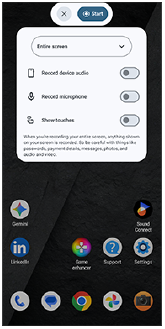
You can record the entire screen or a single app. In addition to device audio, you can also record audio from the microphone simultaneously.
-
Swipe down twice from the top of the screen to open the Quick settings panel.
-
Swipe left or right to find the following tile, and then tap it.
 (Screen record)
 If you cannot find the tile in the Quick settings panel, you can add it to the panel.
Tap the following icon.
 (Edit)
Then, tap the following tile to add it to the Quick settings panel.
(Screen record) -
Select recording settings and start recording the screen.
- You can select whether to record the entire screen or a single app.
- Select what to record, including device audio, audio from the microphone, and/or touches on the screen, if necessary.
-
If you select the following, select the recording app from the settings.
[Single app]
Recording will start after the countdown is finished.
To stop recording, swipe down from the top of the screen to open the notification panel, and then tap the Screen recorder notification.
TP1002542180