


Using your device by connecting to an external display (Desktop mode) (Xperia 1 VIII/Xperia 1 VII/Xperia 1 VI only)
You can operate the apps of your device like a computer on a large screen by connecting your device to an external display, independently of operating your device.
Note
- You will need peripherals such as cables and a docking station in advance to connect your device to an external display. When you use the docking station for a wired connection, first connect peripherals such as the keyboard and mouse and the external display to the docking station. Then, connect the docking station to your device.
- Connection methods vary depending on the external display and peripherals. Please refer to the instruction manual for the devices to be connected.
- Some external displays and peripherals may not support this feature.
- Connect the USB Type-C® port of your device to an external display using a cable.
The following screen will appear.
[Connect to external display]
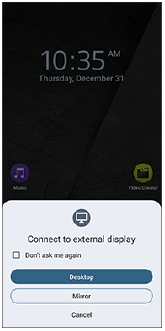
- Tap the following.
[Desktop]The Desktop mode screen will appear on the external display.
- Use peripherals such as a keyboard and mouse to operate the screen.
- You can display multiple app screens on the external display and operate the apps like on a computer.
- Before exiting the Desktop mode, save and close any documents or files currently open on the Desktop mode screen, if necessary. Then, disconnect the cable from your device.
Hint
-
Find and tap as follows to change display and operation settings when your device is connected to the external display.
[Settings] > [Connected devices] > [External displays]
-
After connecting your device to an external display, tap the following to display the same screen on the external display as on your device.
[Connect to external display]: [Mirror]
To exit the Mirror mode, disconnect the cable.
TP1002509513