


Using Google Gemini
May not be supported in some countries and regions.
By connecting Google Gemini to your headset from the settings menu, you can receive assistance with various tasks via chat.
-
Launch the “Sound Connect” app, and set the function when you press and hold the play button to [Digital assistant].
The first time you use Google Gemini, make sure that Google Gemini is set as the primary AI assistant on the connected smartphone.
-
Operate the play button (A) to use the Digital assistant.
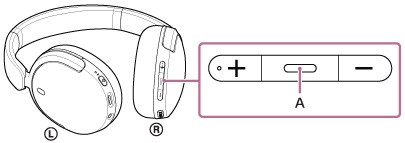
- Press and hold the button to input a voice command, and release the button to finish the voice command.
For details, refer to the following website.
https://support.google.com/gemini/answer/15456140
Compatible smartphones
- Android 13 or later
For more information about Google Gemini, refer to the following.
- The operating instructions or support website for Android smartphones
- The Google Play Store website
https://support.google.com/gemini/
Hint
- Check or update the software version of the headset with the “Sound Connect” app.
- When Google Gemini is not available for reasons such as not being connected to the network, you will hear a voice guidance indicating unavailability from the headset. Notifications may be displayed on the screen of the connected device, but service specifications may change without notice due to changes made by service providers.
Note
- Google Gemini and the voice assist function (Google app) cannot be assigned to the headset at the same time.
- Google Gemini and the voice assist function (Siri) cannot be assigned to the headset at the same time.
- The function to operate the headset with Google Gemini depends on the specifications of Google Gemini.
- The specifications of Google Gemini are subject to change without notice.
- For details on the services provided by other companies such as Google Gemini, consult each service provider directly.
Sony shall assume no responsibility for any problems such as misunderstandings related to the services provided by other companies.
TP1002283816