


Using the voice assist function (Google™ app)
By linking with the Google app on your Android smartphone, you can operate the Android smartphone by voice while wearing the headset.
-
Set the assist and voice input selection to the Google app.
On the Android smartphone, select the following menus.
[Settings] - [Apps & notifications] - [Advanced] - [Default apps] - [Assist & voice input]
Then, set [Assist app] to the Google app.
The above operating procedure is an example. For more details, refer to the operating instructions supplied with the Android smartphone.
The latest version of the Google app may be required.
Models for countries and regions excluding Chinese mainland:
For details on the Google app, refer to the operating instructions or the support website of the Android smartphone, or the Google Play store website.
Models for Chinese mainland:
For details on the Google app, refer to the operating instructions or the support website of the Android smartphone.
The Google app may not be activated from the headset depending on specifications of the Android smartphone.
-
Connect the headset to the Android smartphone via BLUETOOTH connection.
-
When the Android smartphone is in standby or playing music, press and hold the play/call button (A) on the headset for about 2 seconds or more.

The Google app is activated.
-
Talk to Google through the app using the headset’s microphone (B).
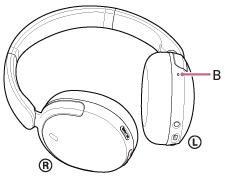
For details on the apps which work with the Google app, refer to the operating instructions for the Android smartphone.
After launching the Google app, voice input will be disabled if no speech is recorded for a certain period of time.
Note
- The voice assist function (Google app) and Google Gemini cannot be assigned to the headset at the same time.
- The voice assist function (Google app) and Tencent Xiaowei cannot be assigned to the headset at the same time.
- Even if “Hey Google” is enabled on your Android smartphone, you cannot use the “Hey Google” voice command to launch the Google app.
- When using the voice assist function, your voice will be heard from the headset through the headset’s microphone (Sidetone function). In this case, ambient sounds or the sounds of the headset operating procedure may be heard through the headset, but this is not a malfunction.
- The Google app may not be activated depending on specifications of the smartphone or application version.
- The Google app does not work when connected to a device not compatible with the voice assist function.