


SMART COOL ⇔ WARM mode
This page introduces use to switch between cooling operation and warming operation automatically (SMART COOL ⇔ WARM mode) by linking data between the unit and REON POCKET TAG (sold separately or included with the RNPK-P1T/RNPK-P1PT).
Note
-
REON POCKET TAG (sold separately or included with the RNPK-P1T/RNPK-P1PT) is required to use this function. (The models sold may differ depending on the country or region.)
For details on how to use REON POCKET TAG, refer to the following Help Guide.
In the SMART COOL ⇔ WARM mode, the unit automatically adjusts the temperature of the cooling/warming section while switching between cooling operation and warming operation automatically according to the following conditions.
- The temperature around the unit
- Your movements such as walking or staying still
- The temperature and humidity data sent from REON POCKET TAG
- Your temperature preference
According to the temperature of the cooling/warming section and the conditions above, the unit may automatically increase or reduce the cooling/warming intensity or pause operation.
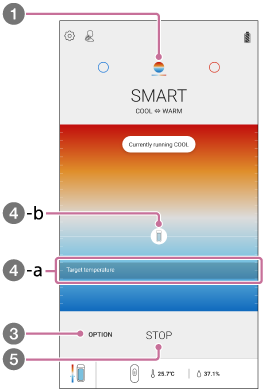
- On the “REON POCKET” app screen, tap
 (SMART COOL ⇔ WARM icon).
 - If the above screen is not displayed, tap [START].
- Tap [OPTION] - [Preference of temperature].
- Set the temperature preference.
Set your temperature preferences for [COOL] and [WARM], respectively.
Once the setting is made, cooling/warming operation will start. The unit automatically adjusts the temperature of the cooling/warming section while switching between cooling operation and warming operation automatically.
When warming operation has continued for about 1 hour, operation is paused for about 1 minute, and then resumes automatically.
- Target temperature (
 -a): Indicates the target temperature range of the cooling/warming section (depending on the temperature preference that you have set).
 - Unit icon (-b): Indicates the current temperature of the cooling/warming section. The circle around the unit icon indicates the intensity of cooling/warming. When the unit automatically pauses cooling/warming operation, the icon becomes translucent.
- Target temperature (
- To stop cooling/warming, tap [STOP].
To set the temperatures at which cooling/warming operation switches
In the SMART COOL ⇔ WARM mode, you can set the reference temperatures at which the operating mode switches from cooling to warming and from warming to cooling.
-
Tap [OPTION] - [Switching Temperatures].
-
Set the switching temperatures by sliding the boxes to the left and right of the temperature bar.
- The temperature for switching to cooling operation cannot be set lower than the temperature for switching to warming operation.
-
Tap [Done].
Note
-
When the following abnormalities are detected, the cooling/warming operation automatically stops (the mode LED flashes in purple for about 8 seconds).
- The temperature inside the unit has become extremely high.
- The temperature of the cooling/warming section has become extremely high or low.
- The fan inside the unit is not working properly.
Hint
- The exhaust volume of the fan is automatically controlled according to the temperature inside the unit.
