


Connecting a USB device (USB-A)
Compatible USB devices
-
The speaker only supports USB devices that are compatible with USB Mass Storage Class.
-
The speaker only supports USB devices that are formatted with the FAT file system variants. However, the exFAT file system variant is excluded.
Some USB devices may not work with the speaker even when the devices meet the above requirements.
The speaker does not support the use of an iPhone via a USB connection.
- Connect a USB device to the USB-A port on the speaker.
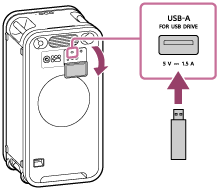
- Turn the FUNCTION dial on the speaker to select USB-A.
Note
-
When USB cable connection is necessary, use the USB cable that is supplied with the USB device. See the operating instructions of the USB device for the detailed operating procedure.
-
Do not connect the speaker with USB devices through a USB hub.
-
When a USB device is connected, the speaker retrieves all the files on the USB device. When the USB device contains many folders and files, it may take a long time for the speaker to finish retrieving from the USB device.
-
Depending on the connected USB device, there may be a delay before a task is executed as instructed through the speaker.
-
Not all of the encoding or writing software applications are guaranteed for compatibility with the speaker. When audio files on a USB device are originally encoded by incompatible software, noise or interrupted audio may be resulted from playback of those files. Alternatively, an attempt to play the files may fail.
-
The speaker does not always support all the functions that are available with the connected USB device.
-
The ports and jacks on the speaker are not designed to be water resistant. Do not use the speaker in places where water may splash on the speaker. When you are finished with using the speaker, be sure to securely close the cap.