


Connecting a computer or a smartphone (USB-C)
- Connect a computer or a smartphone compatible with USB Type-C to the USB-C port on the speaker.
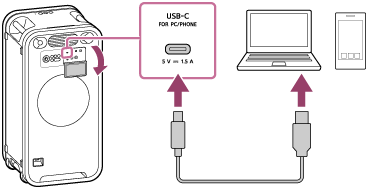
- Turn the FUNCTION dial on the speaker to select USB-C.
Note
-
The USB-C port on the speaker is not compatible with USB Mass Storage Class.
-
To connect a computer or a smartphone to the speaker, use a device and a cable that are compatible with USB-Audio.
-
While a cable is connected to the speaker, do not apply excessive force to the connection part of the cable.
-
To connect a cable, insert the cable plug straight to the designated port. To disconnect the cable, remove the cable plug straight from the port. Do not pull out the cable by tugging on the cable wiring to avoid applying excessive force.
-
When the connector of a cable is found deformed, immediately stop using the cable. For example, do not use any cable with the bent terminal.
-
Depending on the USB Type-C compatible smartphone that you are using, some settings may be necessary to connect to the speaker.
The user interface wording that is displayed on the connected smartphone vary depending on the smartphone. For example, “Detect USB device” or “Enable USB On-The-Go connection” may be displayed. For details, refer to the operating instructions of the USB Type-C compatible smartphone.
-
When you connect the speaker with a device other than a smartphone, the speaker volume may increase. While an app is running or a content is playing on the device, do not connect the device and the speaker.