


Lock screen
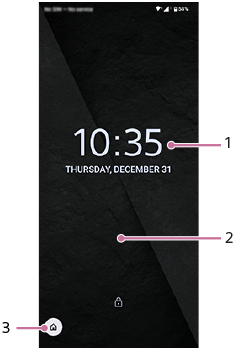
The lock screen displays the clock, wallpaper, shortcut icons, notifications, etc.
-
Clock
You can change the design, color, and size of the clock.
-
Wallpaper
-
Shortcuts
You can set shortcut icons to quickly access features by pressing and holding the icons. You can set one icon on each side, such as the Camera app, “Flashlight”, “Do Not Disturb” mode, etc.
To customize the lock screen
Touch and hold an empty area on the Home screen, and then tap the following to set each item.
[Wallpaper & style] > [Lock screen]
Hint
-
You can also open the Wallpaper & style screen from the Settings menu. Find and tap as follows.
[Settings] > [Wallpaper & style]
-
You can change various settings for the lock screen from the Settings menu. Find and tap as follows.
[Settings] > [Display] > [Lock screen]
TP1002272110