


Displaying the screen of your device on a TV via a wireless connection (Cast)
If your TV or other large display supports Google Cast™, you can enjoy content from your device on the TV or display without using a cable connection.
For more information, visit Cast Help at the following URL.
Using Cast to display the screen of your device on a supported TV
The Cast feature is available from the following in the Quick settings panel.
 (Cast)
Make sure that your device is connected to a Wi-Fi network in advance.
-
Connect your device and the TV to the same Wi-Fi network.
-
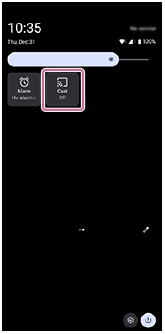
Swipe down twice from the top of the screen to open the Quick settings panel on your device.
-
Swipe left or right to find the following function, and then tap it.
(Cast)Then, tap the following button.
[Settings]
Hint
-
If you cannot find the icon in the Quick settings panel, you can add it to the panel.
Tap the following icon.
 (Edit)
Then, touch and hold the following icon to move it to the upper part of the screen.
(Cast)
-
-
Tap the device to which you want to connect.
To stop Cast between devices
Find and tap as follows in the Quick settings panel.
(Cast) > [Disconnect]
Note
- When using Cast, do not cover the Wi-Fi antenna area of your device.
- When using Cast, the image quality may sometimes be negatively impacted if there is interference from other Wi-Fi networks.
Hint
-
You can also select and use the Cast function from the Settings menu.
Find and tap as follows.
[Settings] > [Connected devices] > [Connection preferences] > [Cast]
Then, tap the device to which you want to connect.
-
You can display the screen of your device on the TV while using Cast-compliant apps such as YouTube. Tap the Cast button on the app screen, and then select your TV to display the screen of your device on the TV.
You may need to sign in to the app on the TV with the same Google account that you are using on your device, depending on the app that you are using.