


Split-screen mode (Multi-window)
The Split-screen mode enables you to view two apps at the same time and operate each of them.
Not all apps support the Split-screen mode.
-
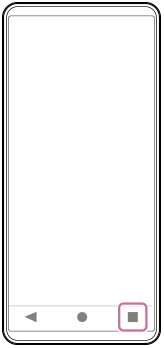
Tap the following button in the navigation bar.
 (Overview)
-
Tap the following.
[Multi-window]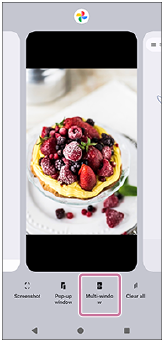
-
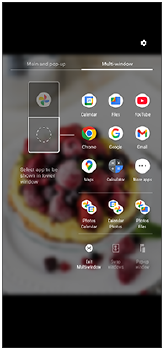
Select the apps you want to display in the upper and lower window.
You can also display apps by tapping one of the apps in the pair.
Hint
- You can also set up the split-screen by flicking up the Side sense bar and then selecting the Multi-window tab or swiping left on the screen to display the multi-window menu.
Split-screen overview
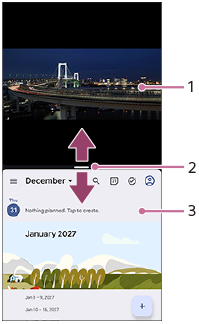
-
App 1
-
Partition line of split-screen
Drag the following icon in the middle of the screen up or down to resize the windows.
 (Bar on the partition line)
 -
App 2
Hint
- A window in the Split-screen mode is split vertically in the portrait orientation and horizontally in the landscape orientation.
-
To exit the Split-screen mode, drag the following icon to the top or bottom of the screen.
(Bar on the partition line)
TP1001107915