


Using the function (Side sense)
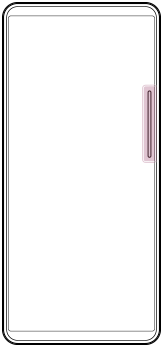
You can easily access menus and useful functions by performing gestures on the Side sense bar.
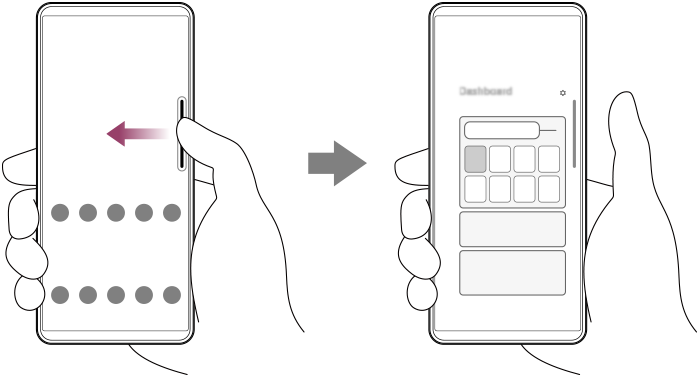
- Flick the Side sense bar inward toward the screen to open the Dashboard, which allows you to quickly change or check the status of your most-used settings.
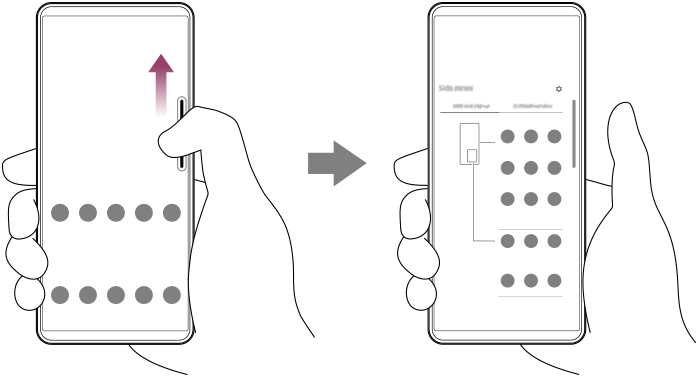
- Flick up the Side sense bar to open the App launcher menu, which allows you to open apps and more. You can also open the Multi-window menu from the App launcher menu.
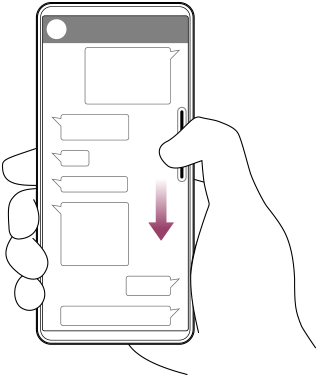
- Flick down the Side sense bar to return to the previous screen (Go back).
Note
- Side sense is not available when using the Camera app.
Hint
-
To learn more about Side sense, tap the following icon on the Home screen.
 (Side sense)
Then, tap the following at the bottom of the screen.
[Multitasking guides]
Then, select the following on the Multitasking guides screen.
[Side sense]
-
To assign a screen action, such as taking a screenshot, to a gesture, perform the following procedure.
Display the Side sense settings screen by tapping the following icon on the Home screen.
(Side sense)Then, tap as follows.
[Flick inward towards the screen], [Flick up], or [Flick down] > the desired option
Opening the Dashboard
-
Flick the Side sense bar inward toward the screen.
Opening the App launcher menu
-
Flick up the Side sense bar.
Returning to the previous screen using Side sense
-
Flick down the Side sense bar.
Moving the Side sense bar
-
Touch and hold the Side sense bar, and then drag it up or down.