


Transferring content using a computer
You can transfer a large amount of data to your new device from your old device using a computer.
-
Connect your old device to a computer using a USB cable.
On any Android devices, swipe down from the top of the screen, tap the USB connection setting notification, and then tap as follows.
[Tap for more options.] > [File transfer/Android Auto]
If your old device is an iOS device, follow the on-screen instructions.
Hint
-
You can also select the file transfer mode by performing the following procedure.
[Settings] > [Connected devices] > [USB] > [File transfer/Android Auto]
-
-
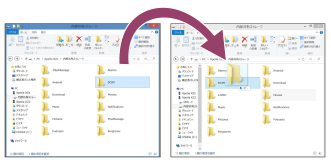
On the computer, select which files to transfer from your old device, and then copy and paste or drag and drop the files to a location on the computer.
-
Connect your new device to the computer using a USB cable.
Swipe down from the top of the screen on your new device, tap the USB connection setting notification, and then tap as follows.
[Tap for more options.] > [File transfer/Android Auto]
-
Select which files to transfer from the computer and then copy and paste or drag and drop the files to a location on your new device.
When you copy files from your old device to your new device, make sure that the folder names are the same on both devices.
Note
- Always use a USB-standard-compliant cable, since other types of USB cables may pose increased safety risks.
- Make sure the USB cable is completely dry.