


Structure of the Planning Screen
The Planning screen displays the shooting plans (planning metadata) received from the Newsroom Computer System (NRCS) in list view. This is used to send the shooting plan selected in the list to a camcorder.
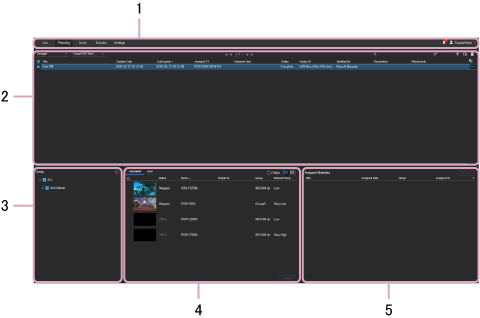
1. Global menu
Click the icons to move between screens.
- Live: Display the Live screen.
- Planning: Display the Planning screen.
- Asset: Display the Asset screen.
- Transfer: Display the Transfer screen.
- Settings: Display the Settings screen.
 (Notifications): Displays notifications to the user. Press [Mark all as read] to mark all notifications as read. Press [Delete all] to delete all notifications.
 (Personal setting): Sign out, display account settings, or display the Help.
2. Shooting plan operation area
Use to search and select a displayed shooting plan and send it to a camcorder. If many shooting plans are displayed, the display is split into separate pages.
- Group drop-down list: Displays the list of NRCS systems related to the selected group.
- NRCS drop-down list: Displays the shooting plans received from the selected system if more than one network NRCS or local NRCS is registered.
 (Search): Search for shooting plans and displays the search results.
 (Add): Create a shooting plan.
 (Edit): Edit the selected shooting plan.
 (Delete): Delete the selected shooting plan.
- Select an item in the list, click […], and select the Details menu to display the details.
Note
- The columns displayed in the shooting plan operation area are configured on the Settings screen.
3. Group selection area
Select a group in the tree view to display the camcorders and users registered in the group in the transmitter/user selection area.
4. Transmitter/user selection area
Selects the camcorder or user to which to assign a shooting plan.
Click the [Assign] button to assign the shooting plan to the selected camcorder or user.
Transmitter tab
Displays the camcorders to which a shooting plan can be assigned.
Click a thumbnail and select [Planning Metadata in TX] to display a list of the shooting plans sent to the camcorder. You can select a shooting plan on this screen to load it into a camcorder displayed in the list.
Note
- On the CBK-FS7BK, click a thumbnail and select [Assigned Planning Metadata]. A list of the assigned shooting plans is displayed. Select a shooting plan from the list to load it into the camcorder.
- [Online] checkbox: Place a check mark here to display only those camcorders that are online.
 button: Display the devices in list view.
 button: Display the devices in thumbnail view.
User tab
Displays the users to which a shooting plan can be assigned.
5. Assigned Metadata area
Displays the planning metadata assigned to the camcorder or user selected in the transmitter/user selection area.
