


Structure of the Asset Screen
The Asset screen displays information about assets.
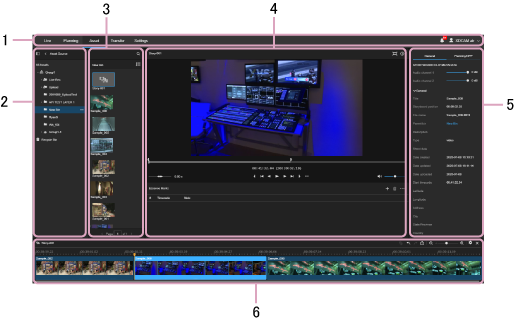
1. Global menu
Click the icons to move between screens.
- Live: Display the Live screen.
- Planning: Display the Planning screen.
- Asset: Display the Asset screen.
- Transfer: Display the Transfer screen.
- Settings: Display the Settings screen.
-
 (Notifications): Displays notifications to the user. Press [Mark all as read] to mark all notifications as read. Press [Delete all] to delete all notifications.
 -
 (Personal setting): Sign out, display account settings, or display the Help.
2. Tree panel
Displays the bins in which assets are stored in tree view.
The status of FTP file transfer is indicated by the color of the bin icons.
Selecting a bin displays the context menu.
- Create Bin: Create a new bin.
- Rename Bin: Rename the bin.
- Upload File: Upload file to the bin.
- Delete Bin: Delete the bin.
- Create Storyboard: Create a new storyboard.
- Transfer Settings: Select the FTP server, S3 storage, or Sony Ci service for transferring assets in the bin.
3. Asset list
Displays a list of the assets stored in the bin. If many assets are displayed, the display is split into separate pages.
You can move/copy assets between bins using drag & drop.
Hovering the mouse over a thumbnail displays a simple preview. A line indicating the playback position is displayed on the thumbnail.
You can use the following buttons for operations on the selected asset.
-
 (Preview) button: Display the asset details screen to preview the asset.
 -
 (Create Storyboard) button: Create a new storyboard.
 -
 (Download) button: Download the asset.
 -
 (Delete) button: Delete the asset.
You can click the  (Search) button and enter a character string to search for assets. You can click the
  (Advanced Search) button to filter the assets displayed.
Note
- When entering a character string to search for that contains " \ ( ) characters, the characters must be escaped.
- When an interlaced proxy file is displayed in a browser and the zoom factor is changed, the displayed image may become distorted.
4. Preview screen
Displays a preview of the asset.
The preview screen is displayed by double-clicking an asset, or by clicking the (Preview) button.
You can set an In point and Out point, and add the asset to a storyboard.
Essence mark operations
The following shortcut keys are supported for essence mark operations.
| Shortcut keys | Operation |
|---|---|
| M | Add essence mark |
| Ctrl+M | Move to next essence mark |
| Ctrl+Shift+M | Move to previous essence mark |
| Ctrl+Alt+M | Delete selected essence mark |
| Ctrl+Alt+Shift+M | Delete all essence marks |
5. Asset information panel
Displays the metadata for the asset selected in the asset list. You can edit the metadata.
Note
- If the metadata for the same asset is edited simultaneously by more than one client, the last saved contents become valid.
6. Timeline
Use to edit a storyboard.
The timeline is displayed by executing [Create Storyboard] in the asset list or by selecting a created storyboard.
Storyboard operations
The following shortcut keys are supported on the storyboard.
| Shortcut keys | Operation |
|---|---|
| Space key | Toggle play/pause |
| S | Toggle full-screen video |
| . (period), → (right arrow) key | Step 1 frame forward |
| , (comma), ← (left arrow) key | Step 1 frame backward |
| L, F | Shuttle forward |
| K | Pause playback |
| J, D | Shuttle reverse |
| M | Add essence mark |
| Ctrl+M | Move to next essence mark |
| Shift+M | Move to previous essence mark |
| Ctrl+Alt+M | Delete essence mark |
| Shift+Ctrl+Alt+M | Delete all essence marks |
| I | Mark In-point |
| O | Mark Out-point |
| Page Up key | Move up in essence mark table |
| Page Down key | Move down in essence mark table |
| R, Ctrl+K | Razor edit cut at the playhead location |
