


Structure of the Transfer Screen
The Transfer screen is used to transfer camcorder proxy files to XDCAM air, and to upload high-resolution (High-Res) files to an FTP server. It is used to specify the clips to transfer and to control transfer jobs.
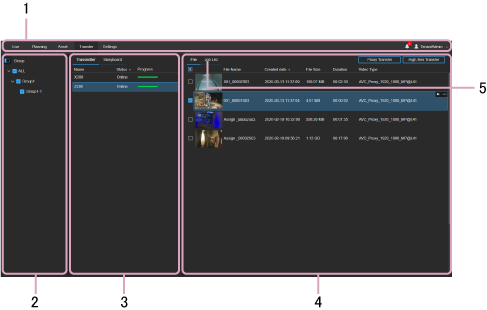
1. Global menu
Click the icons to move between screens.
- Live: Display the Live screen.
- Planning: Display the Planning screen.
- Asset: Display the Asset screen.
- Transfer: Display the Transfer screen.
- Settings: Display the Settings screen.
 (Notifications): Displays notifications to the user. Press [Mark all as read] to mark all notifications as read. Press [Delete all] to delete all notifications.
 (Personal setting): Sign out, display account settings, or display the Help.
2. Group selection area
Displays groups in tree view. Select a group that contains the devices to display in the Source area.
3. Source area
Transmitter tab
Displays the devices on which files to transfer are stored in list view.
Storyboard tab
Displays transfer jobs when sending high-resolution files to an FTP server according to the edit results on a storyboard.
4. File tab
Displays a list of files stored on the device selected in the Source area. Select files to transfer by placing a check mark in the checkbox beside each file.
- Proxy Transfer button: Adds the proxy file for the selected file to the transfer job list. Files are transferred to the server specified in [Upload Server] in XDCAM air. The transferred files are also saved in the [Auto Upload] bin on the Asset screen in the same way as when using the camcorder Auto Upload function. Selection of the transfer destination in the GUI is not required.
- High-Res Transfer button: Adds the high-resolution file for the selected file to the transfer job list. Select the transfer destination server from among the external servers registered as Upload destinations on the camcorder.
- Preview button: Displays the selected file in the preview screen. You can specify an In point and Out point on the preview screen to transfer that portion only. Essence marks and metadata configured on the camcorder are displayed on the preview screen.
Note
- The Preview button is displayed above the list when a file is selected.
- Proxy Transfer and High-Res Transfer are also displayed in the context menu above the list.
- For PXW-Z280/Z190/FX9 camcorders, the transfer destination registered in XDCAM air is also displayed as the transfer destination for High-Res Transfer.
5. Job List tab
Displays a list of file transfer jobs executed on the [File] tab and the current transfer status.
- Delete: Delete the selected job from the list.
- Clear Completed Jobs: Delete jobs after completion of transfer to an FTP server from the list.
